
Account Balance
Read Total Outstanding Balance, account type and the aging report.
Account Balance shows Total Outstanding Balance, including un-billed tickets, and Payment Option. Aging Balances separately shows outstanding invoiced balances and the report date.
Open Account Balance (opens in a new tab)Jump to a step
Step-by-step guide
5 stepsBefore you start
- The division whose balance you want to review.
- 1
Open Account Balance
Select Account Balance in the left navigation. Check the division name at the top of Balance Overview.
Open Account Balance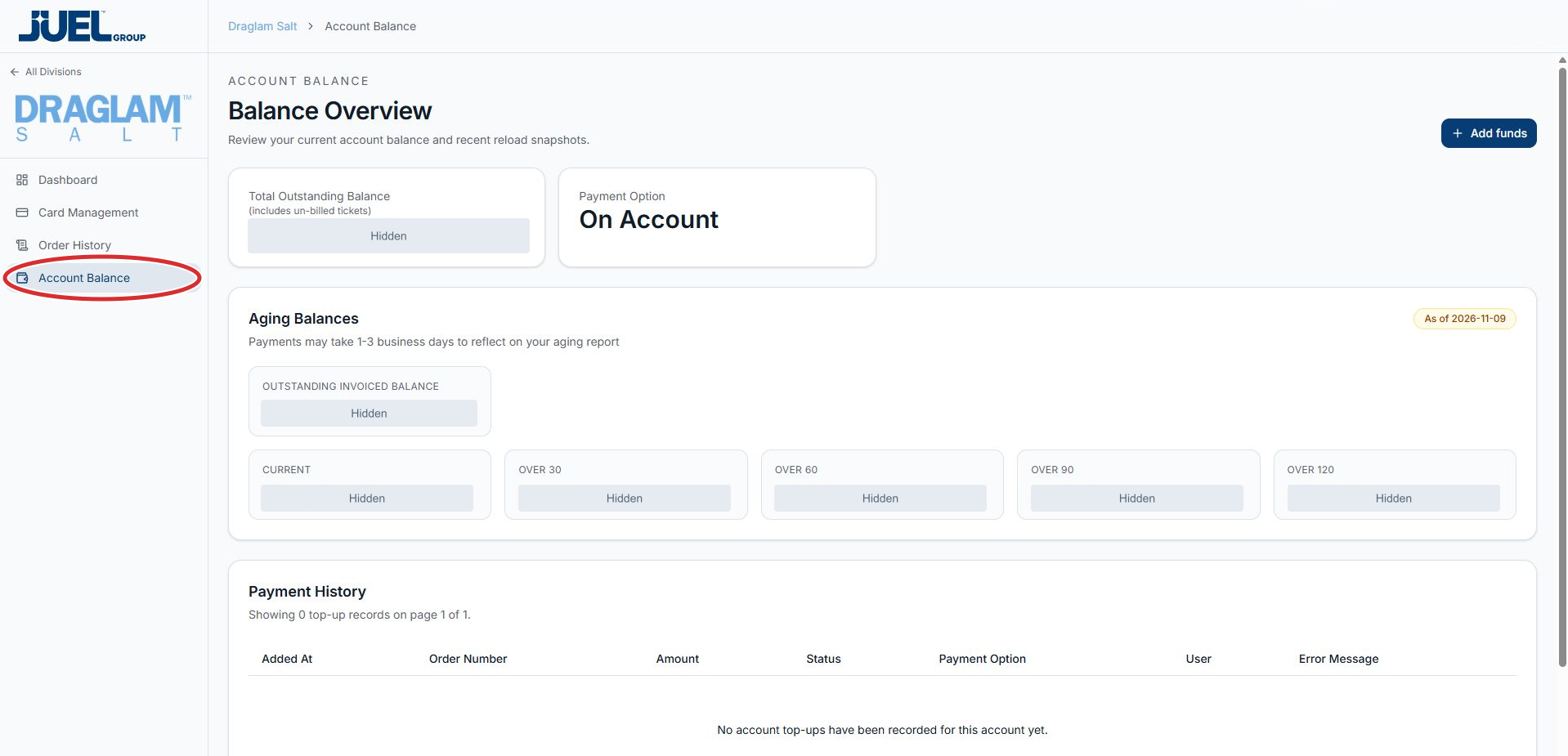
Check the selected division before reviewing its balance. Actual financial values are hidden.
Full app view · red circles show where to look. Select View larger, then Actual size to zoom in. - 2
Read the balance and payment option
Total Outstanding Balance is labelled “includes un-billed tickets”. Read Payment Option alongside it to see the account type displayed for this division. Use these labels when describing a balance question to your account contact.
Check the balance labels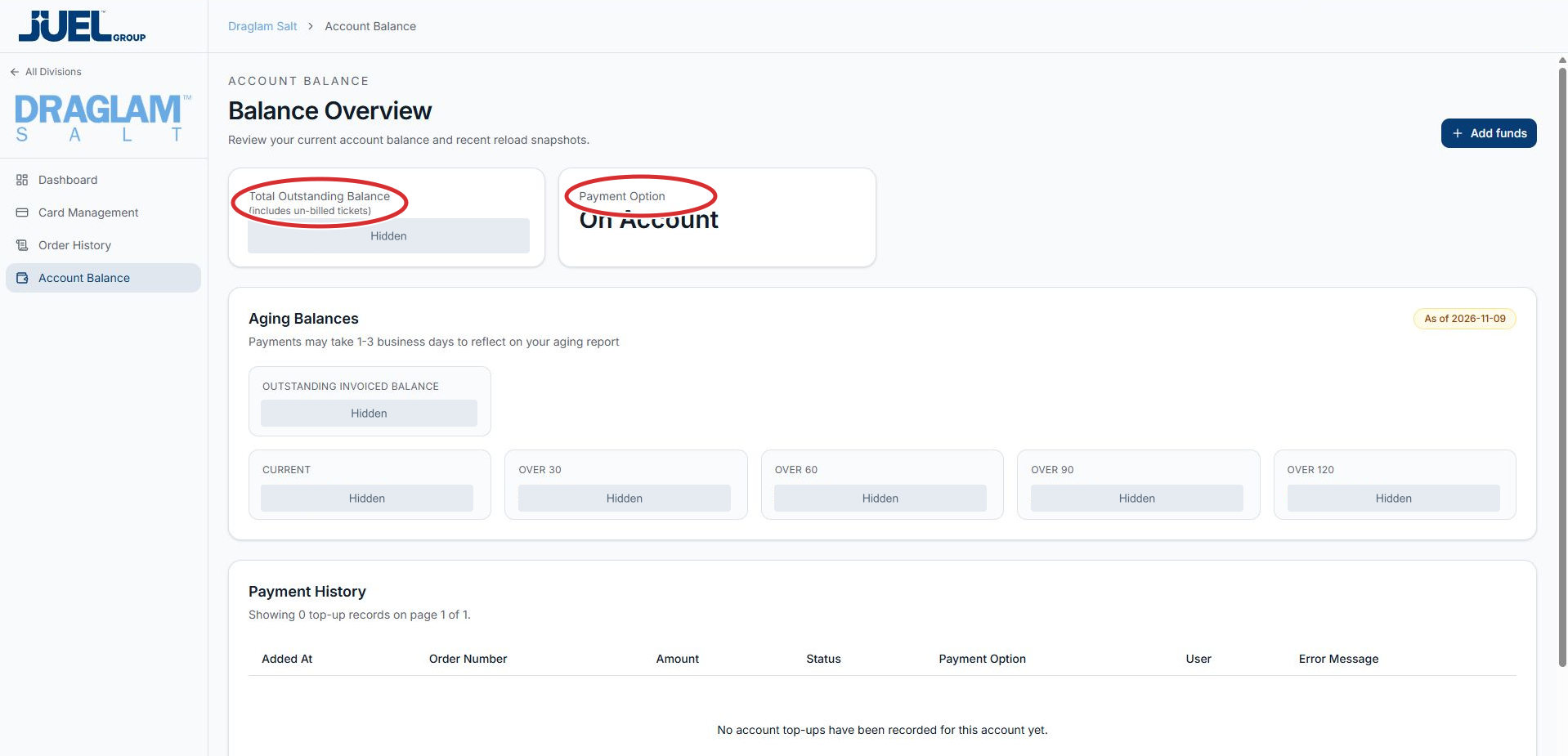
The total is labelled “includes un-billed tickets”. Financial figures are hidden.
Full app view · red circles show where to look. Select View larger, then Actual size to zoom in. - 3
Check Aging Balances separately
Find Aging Balances below the overview cards and read the As of date. Review Outstanding Invoiced Balance and the Current, Over 30, Over 60, Over 90 and Over 120 figures. This section concerns invoiced balances; Total Outstanding Balance also includes un-billed tickets, so the two totals have different scope.
Find the aging report and date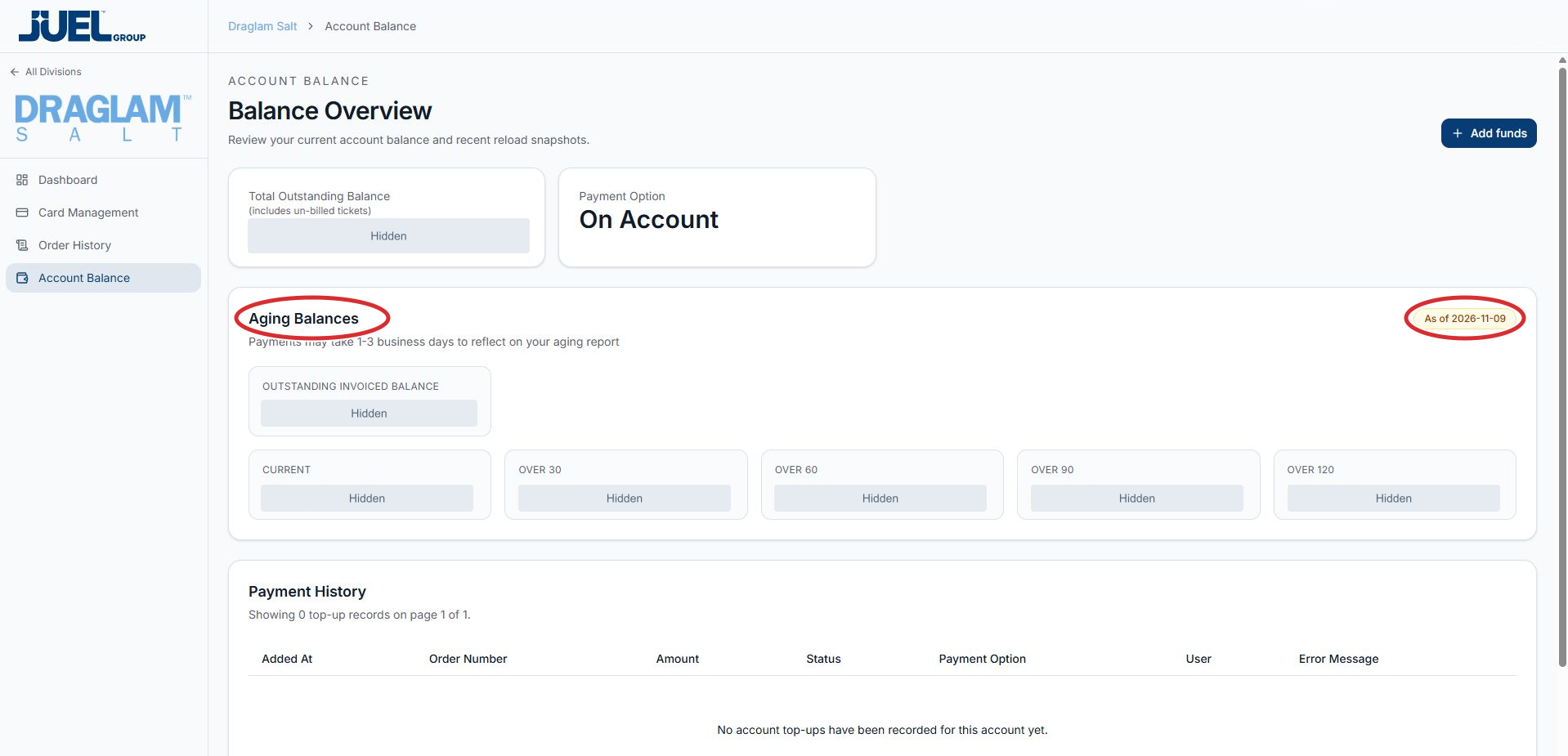
Aging Balances appears below the overview cards. Read the report date before comparing figures.
Full app view · red circles show where to look. Select View larger, then Actual size to zoom in.Read the invoiced balance periods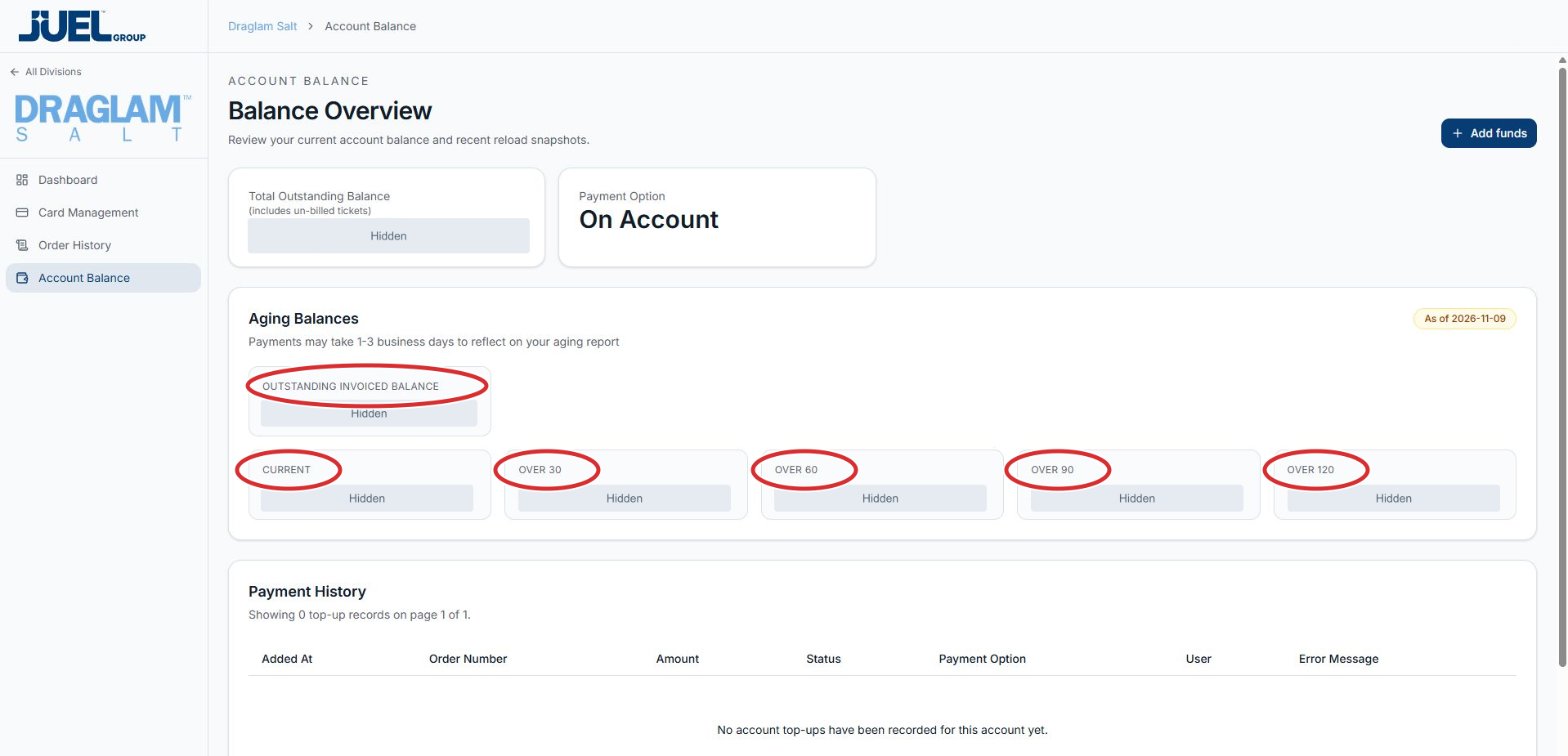
Use each displayed label when asking about a figure. Actual balances are hidden.
Full app view · red circles show where to look. Select View larger, then Actual size to zoom in. - 4
Find top-ups in Payment History
Scroll below Aging Balances to Payment History. Match a top-up using Added At, Order Number and Amount, then read its Status and any Error Message. An empty table states that no account top-ups have been recorded.
Read the top-up headings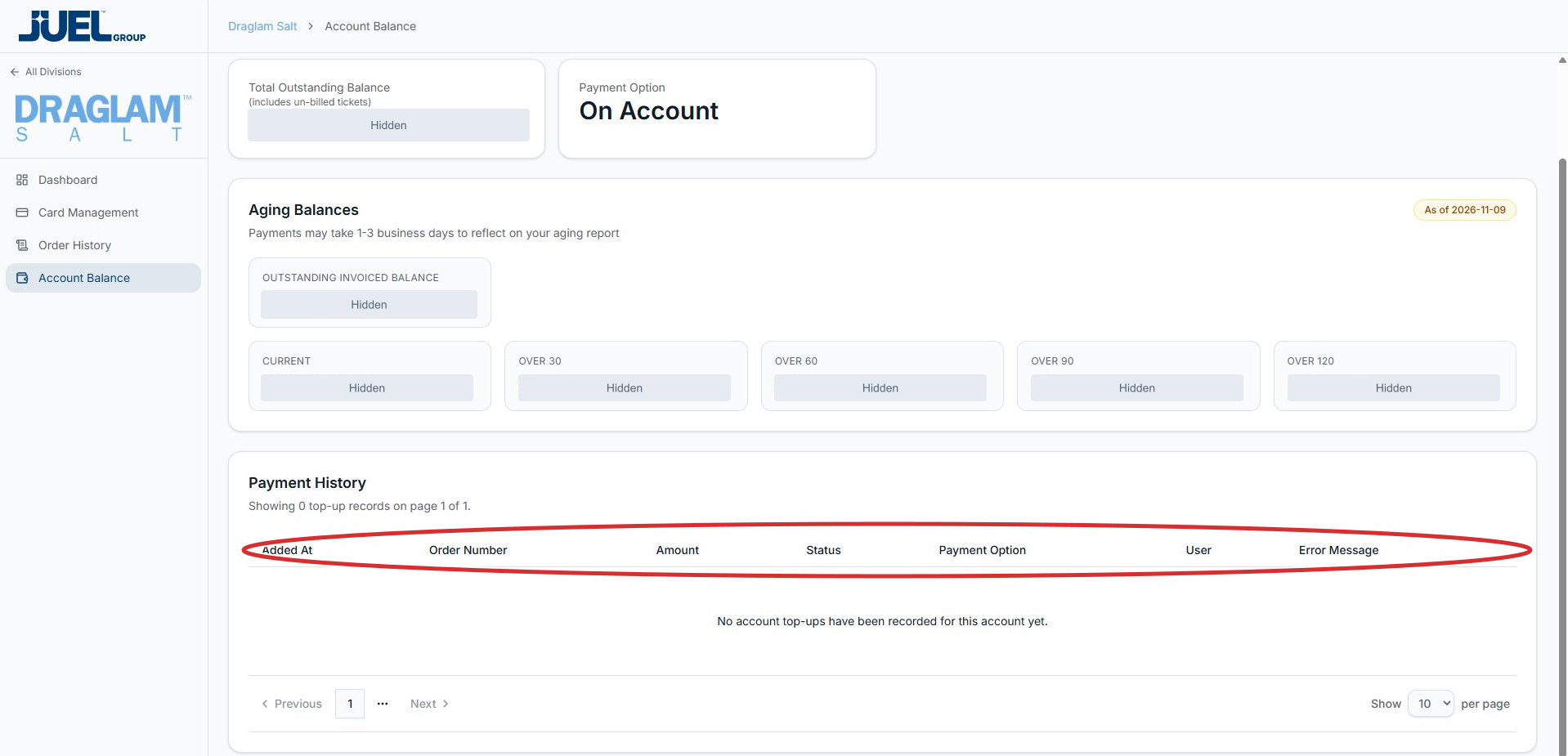
Match a top-up using Added At, Order Number and Amount, then read Status and any Error Message in the same row.
Full app view · red circles show where to look. Select View larger, then Actual size to zoom in. - 5
Check payment reporting time
The notice under Aging Balances says payments may take 1–3 business days to reflect on the aging report. For an unexpected balance or unclear payment result, share the division and relevant invoice or payment reference with your existing account contact.
Check the payment reporting notice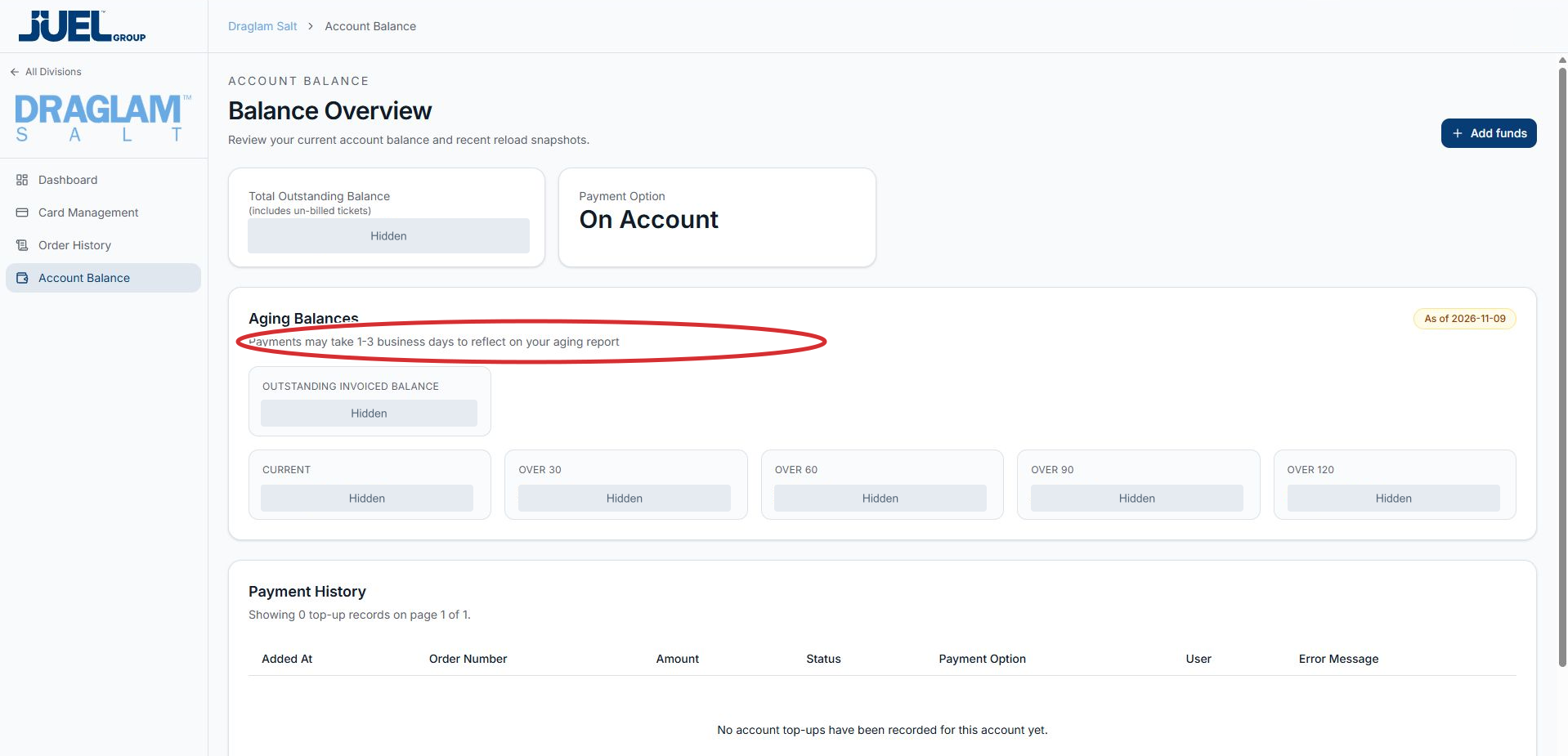
The portal says payments may take 1–3 business days to reflect on the aging report.
Full app view · red circles show where to look. Select View larger, then Actual size to zoom in.
Account Balance
Video coming soon
We’re preparing this tutorial.
The written guide is available below.