
Add Funds
Choose an amount, review the fee and total, and use the card payment form.
Open Account Balance and select Add funds. Choose an amount, review the price breakdown and complete the credit card form. The displayed amount range is $1–$10,000.
Open Account Balance (opens in a new tab)Jump to a step
Step-by-step guide
6 stepsBefore you start
- The correct division is selected.
- Your payment card and cardholder details. Enter them only in the Admin Portal.
- 1
Open Add funds
Select Account Balance in the left navigation and confirm the division name. Select Add funds at the top right of Balance Overview to open the payment form.
Find Add funds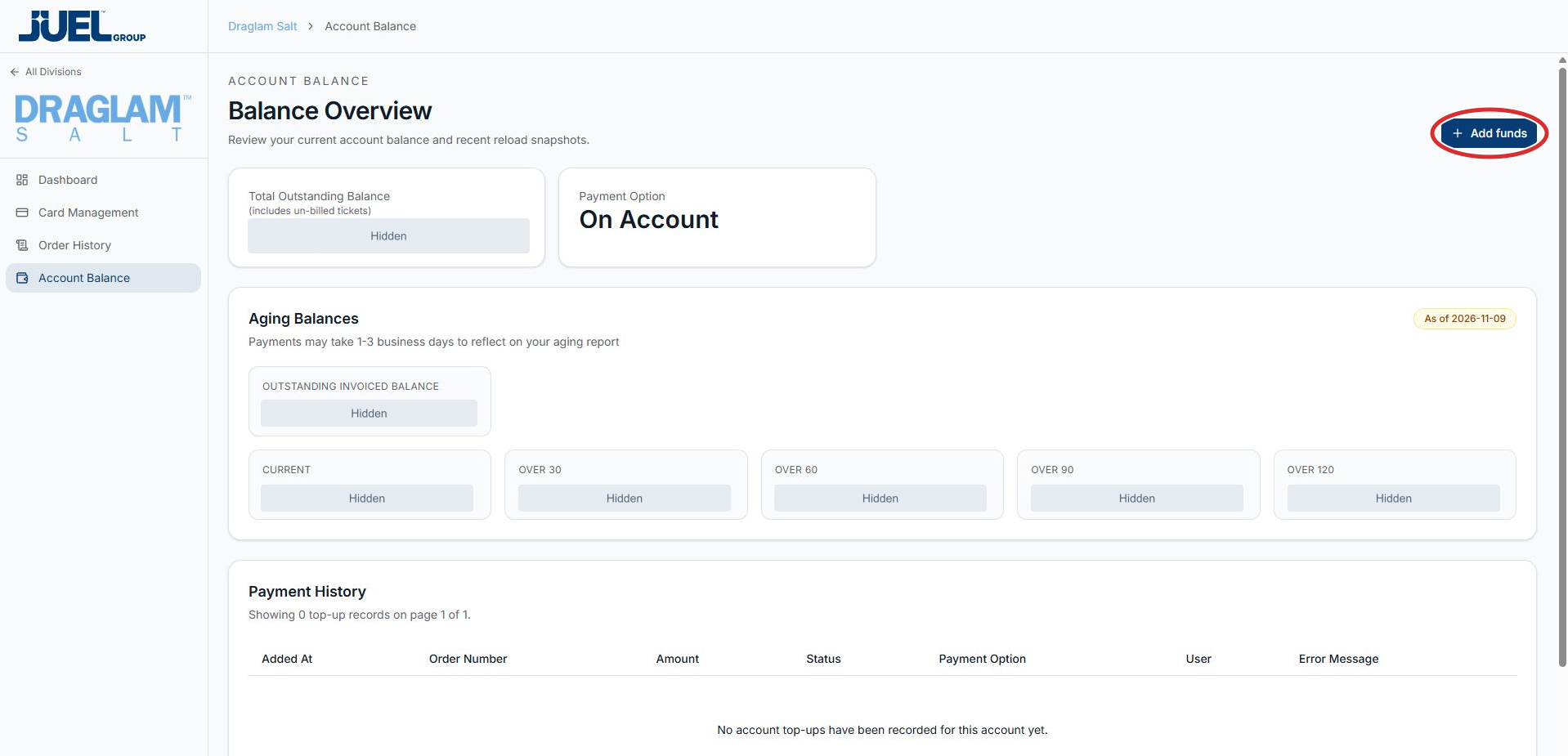
Confirm the division, then open Add funds.
Full app view · red circles show where to look. Select View larger, then Actual size to zoom in. - 2
Choose the amount
Under Amount, select $500, $1000, $1500 or $2000. To use another amount, select Custom and enter the amount you want to add. The displayed minimum is $1 and maximum is $10000.
Choose the top-up amount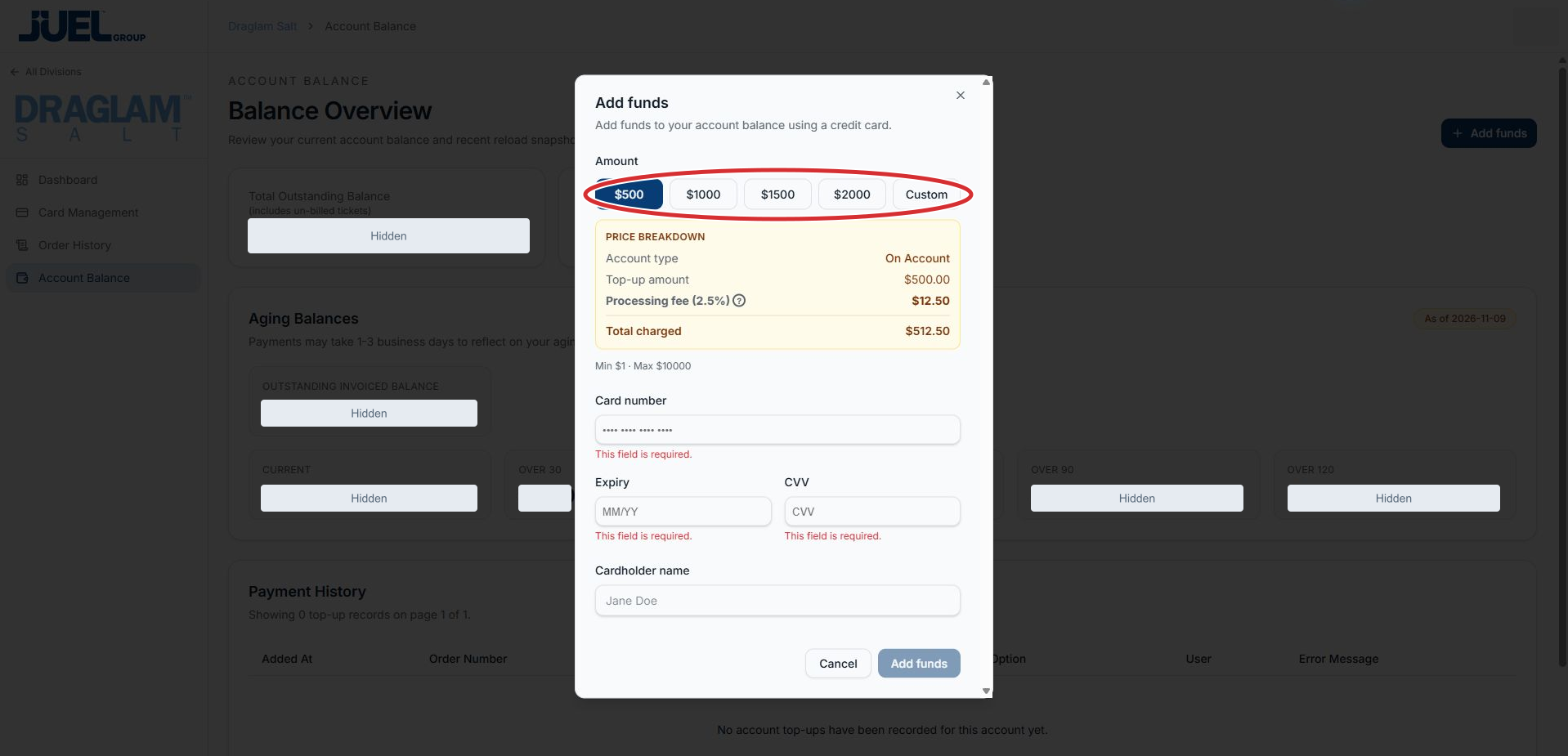
Select a preset or Custom. The form displays a $1 minimum and $10000 maximum.
Full app view · red circles show where to look. Select View larger, then Actual size to zoom in. - 3
Review the price breakdown
Check Account type, Top-up amount, Processing fee and Total charged before entering payment details. On Account credit card top-ups show a 2.5% processing fee. For example, the unsubmitted $500 preset shows a $12.50 fee and $512.50 total. Review the figures shown for your own account and amount.
Review the amount, fee and total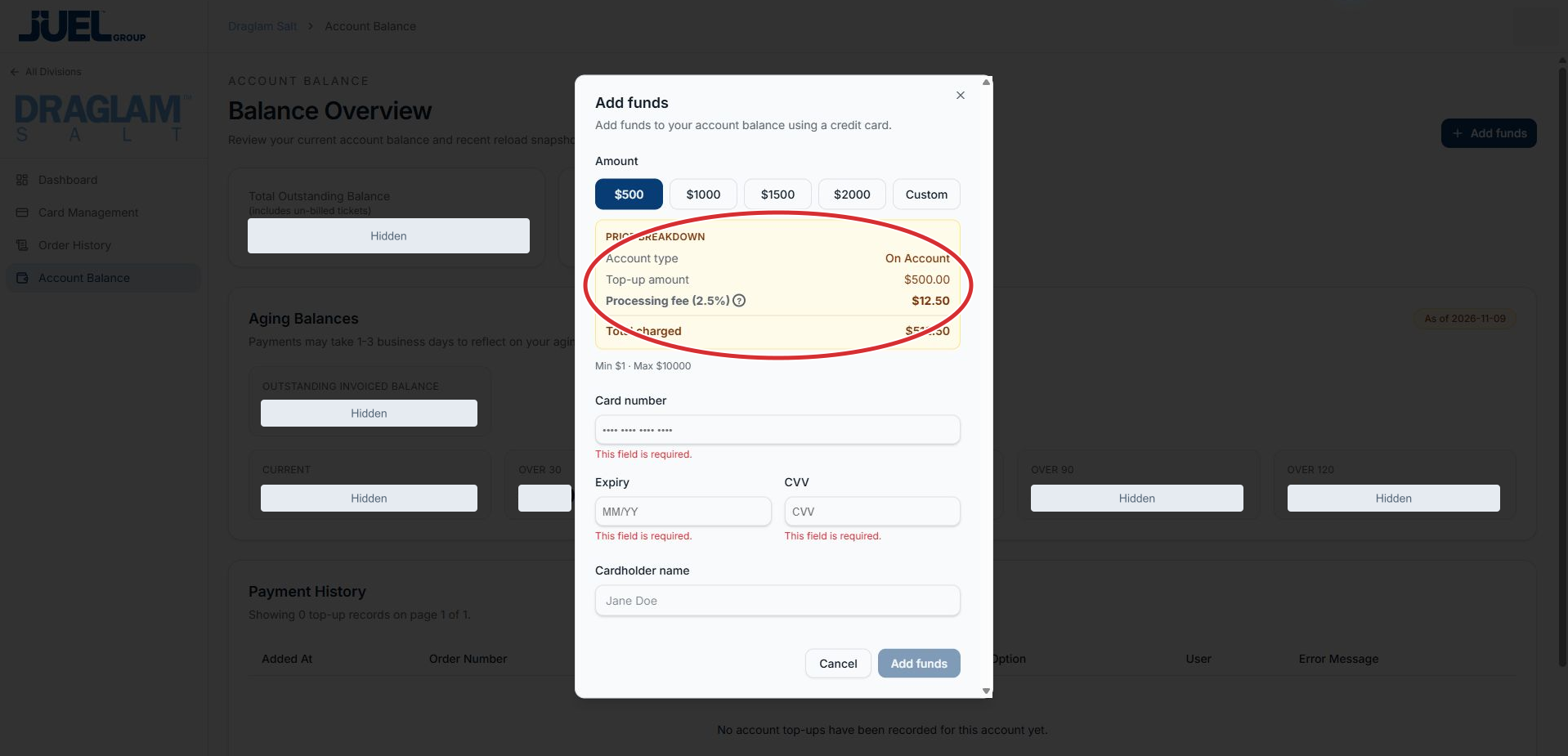
Unsubmitted example only: the $500 preset shows a $12.50 On Account processing fee and $512.50 total.
Full app view · red circles show where to look. Select View larger, then Actual size to zoom in. - 4
Enter the card details
Complete Card number, Expiry, CVV and Cardholder name in the portal’s form. Use the MM/YY format shown for Expiry. Follow any required-field messages and check the entries for accuracy. Do not put payment card details into a support message.
Complete the payment fields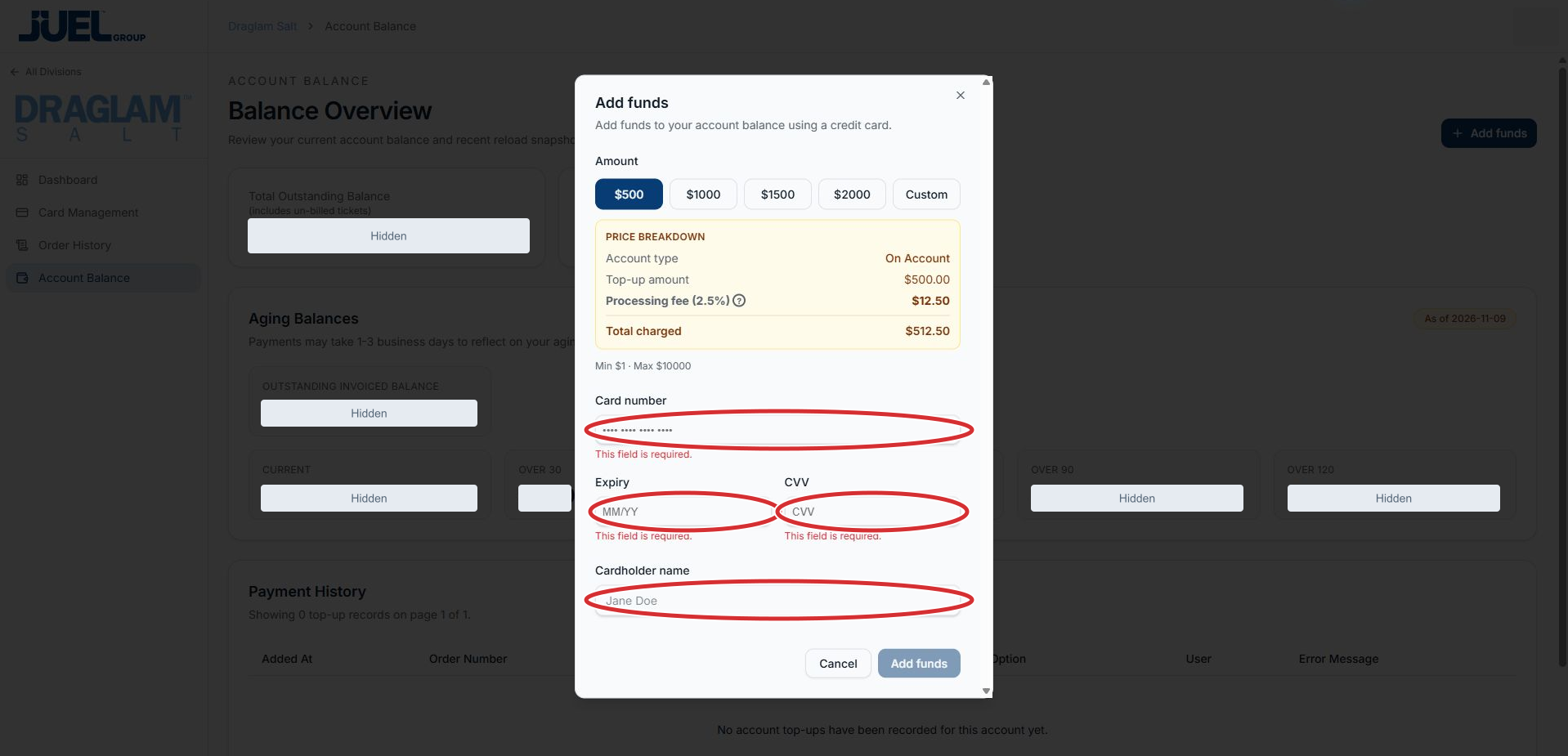
The fields are empty; Jane Doe is placeholder text. Enter payment information only in the Admin Portal.
Full app view · red circles show where to look. Select View larger, then Actual size to zoom in. - 5
Check the total and submit when ready
Review the amount and Total charged again. Select Add funds when the required details are complete and you are ready to submit. The screenshot shows the button disabled while the fields are empty. Use Cancel to close the form without making a payment.
Submit when ready or cancel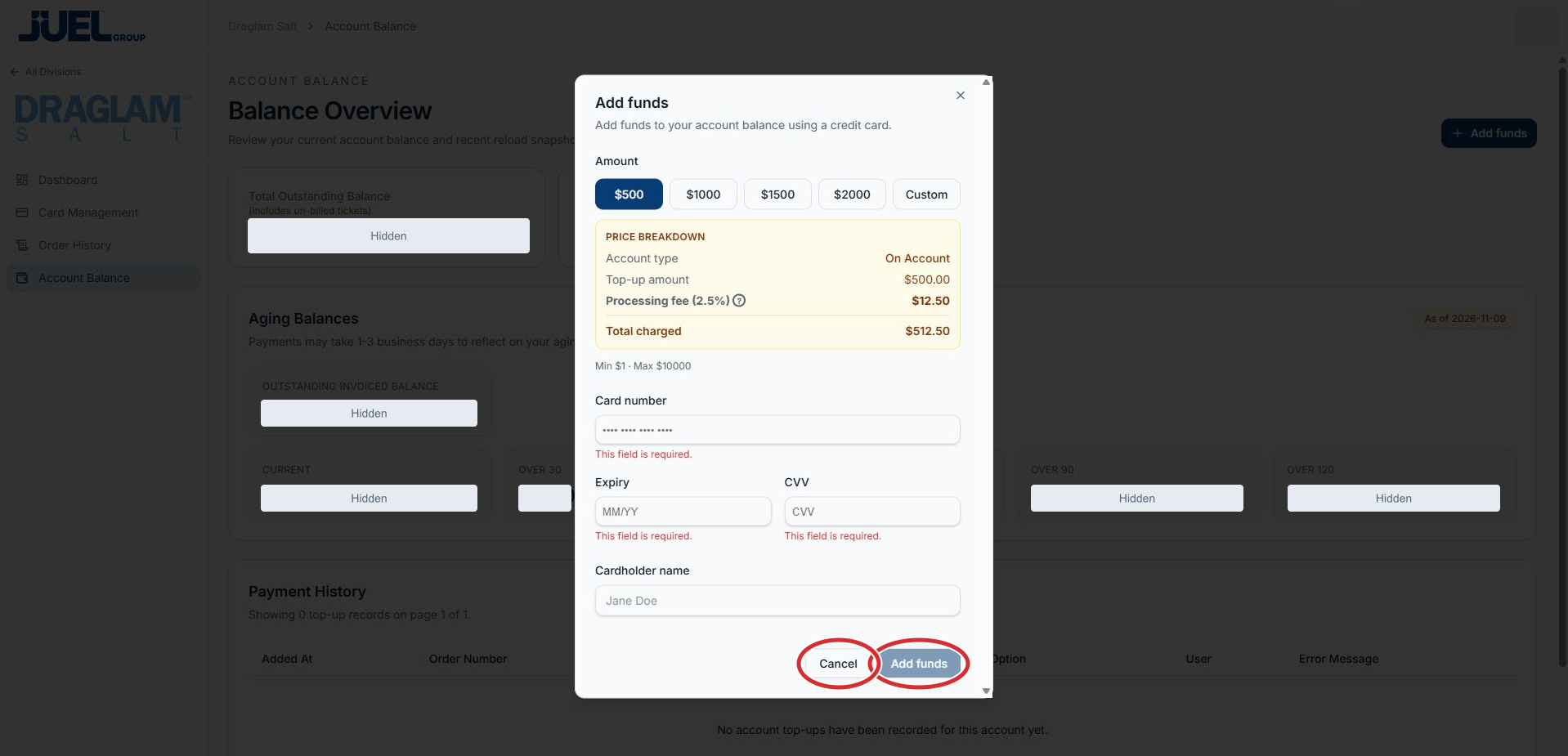
Add funds is disabled in this empty example. Complete the required fields and review Total charged before submitting.
Full app view · red circles show where to look. Select View larger, then Actual size to zoom in. - 6
Check the result and payment record
Read any message displayed by the portal. In Account Balance, scroll to Payment History and look for the top-up using its amount, date and order reference. If the outcome is unclear, ask your existing account contact before trying another payment.
Find Payment History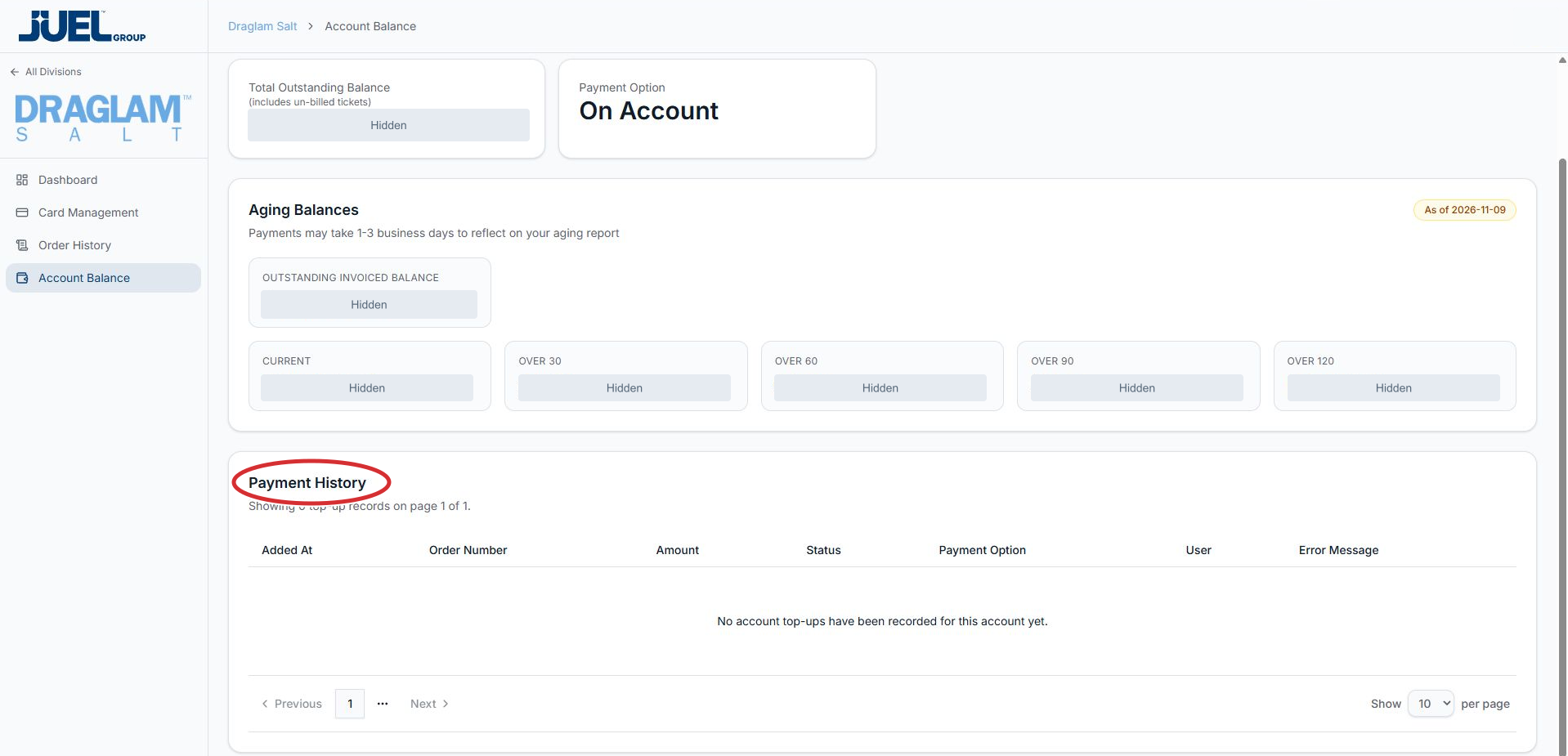
This full app view is scrolled down to show Payment History and its page controls. The example has no top-up records.
Full app view · red circles show where to look. Select View larger, then Actual size to zoom in.