
Understanding aging balances
Check the report date, invoiced balance and payment reporting time.
In Account Balance, Aging Balances shows the report date and invoiced balance periods. Payments may take 1–3 business days to reflect on the aging report.
Open Account Balance (opens in a new tab)Jump to a step
Step-by-step guide
3 stepsBefore you start
- The correct division.
- The relevant invoice or payment reference if you are checking a particular amount.
- 1
Find the aging report
Open Account Balance and locate Aging Balances below the overview cards. Read the As of date at the right of the section heading before comparing the figures with your records.
Find the aging report and date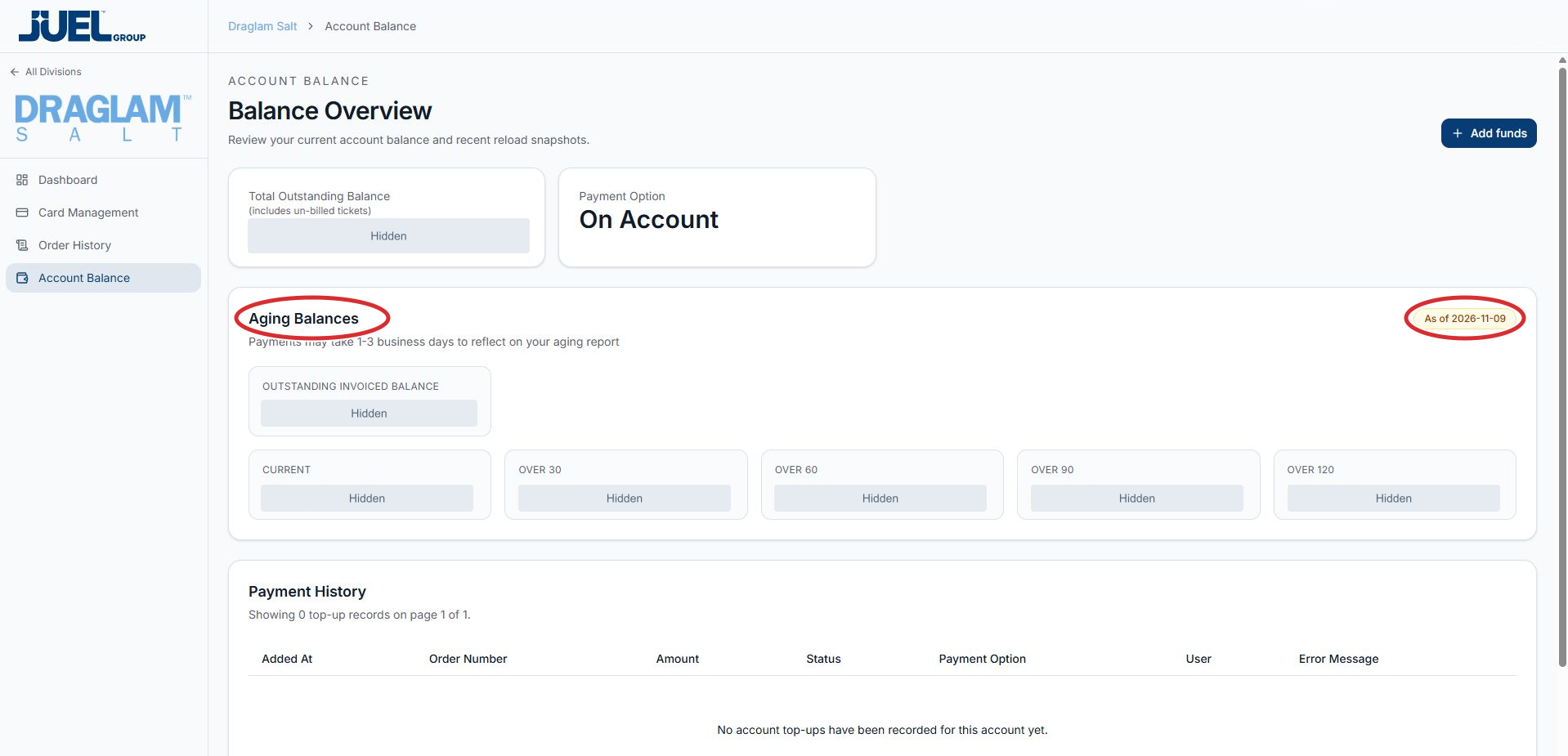
Aging Balances appears below the overview cards. Read the report date before comparing figures.
Full app view · red circles show where to look. Select View larger, then Actual size to zoom in. - 2
Read the invoiced balance periods
Review Outstanding Invoiced Balance, then Current, Over 30, Over 60, Over 90 and Over 120. Use the exact label when asking about a figure. Ask your account contact how the periods apply before adding them together.
Read the invoiced balance periods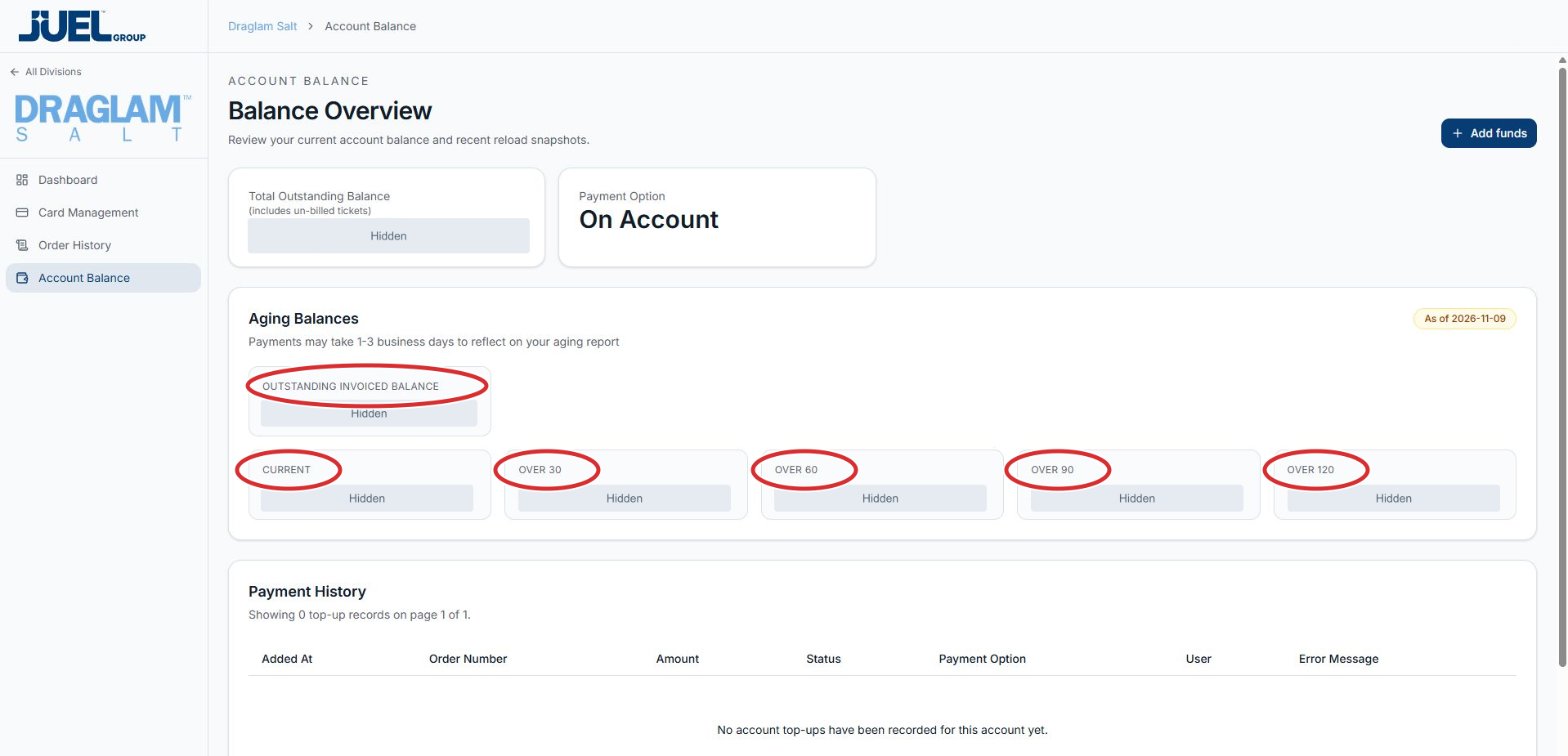
Use each displayed label when asking about a figure. Actual balances are hidden.
Full app view · red circles show where to look. Select View larger, then Actual size to zoom in. - 3
Allow for payment reporting time
Read the notice below the heading: payments may take 1–3 business days to reflect on your aging report. If a figure remains unexpected, give your account contact the division, report date and relevant invoice or payment reference.
Check the payment reporting notice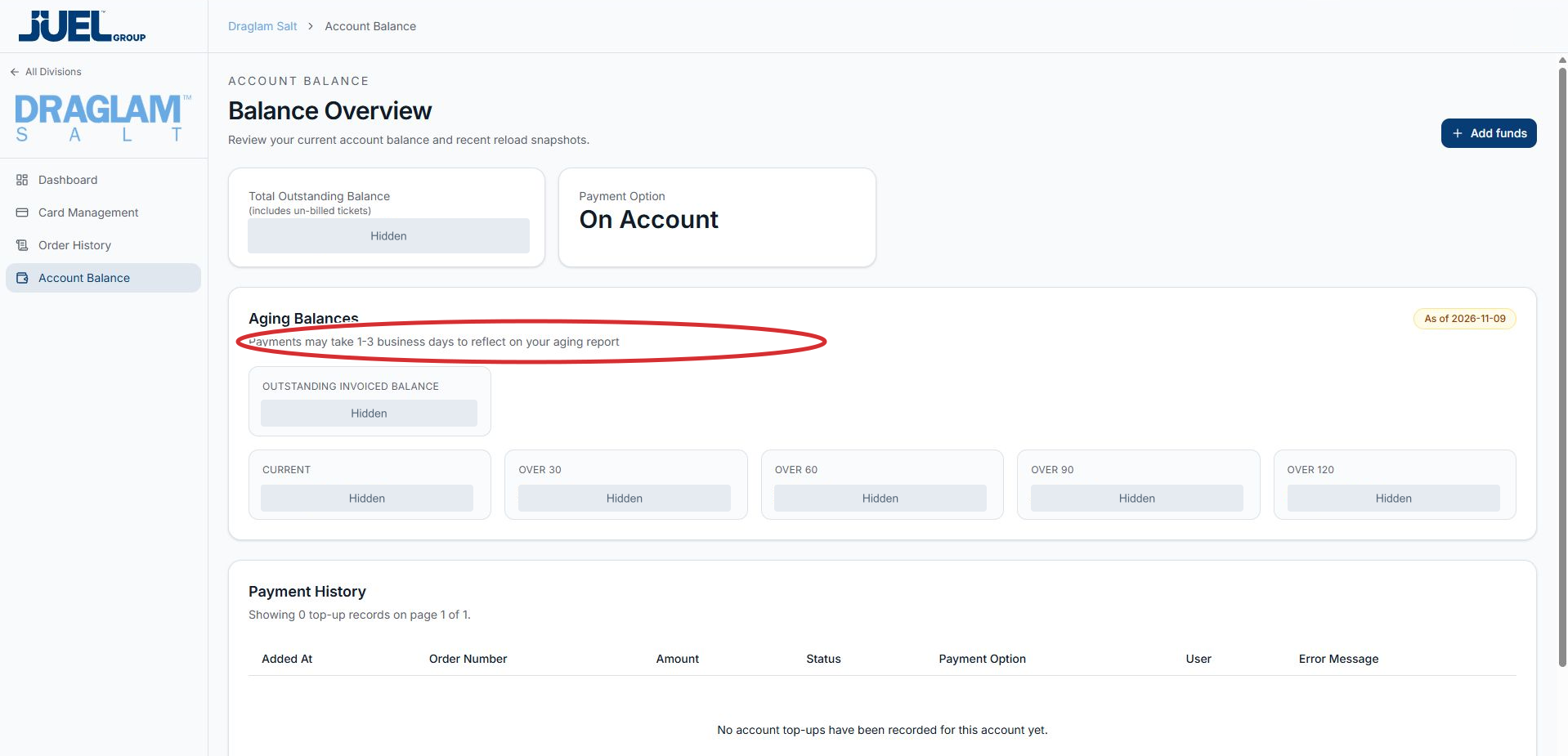
The portal says payments may take 1–3 business days to reflect on the aging report.
Full app view · red circles show where to look. Select View larger, then Actual size to zoom in.