
Manage Digital Cards
Find an operator, review card information and open the row’s Actions menu.
Open Card Management to see card counts and the Issued Cards table. Match the operator and vehicle, review the card details, then open the row’s three-dot Actions menu when needed.
Open Card Management (opens in a new tab)Jump to a step
Step-by-step guide
5 stepsBefore you start
- The division that issued the card.
- The operator’s name and vehicle or plate details to identify the correct row.
- 1
Open Card Management
Select Card Management in the left navigation. Check the division name at the top of the Digital Cards page before reviewing its cards.
Open Card Management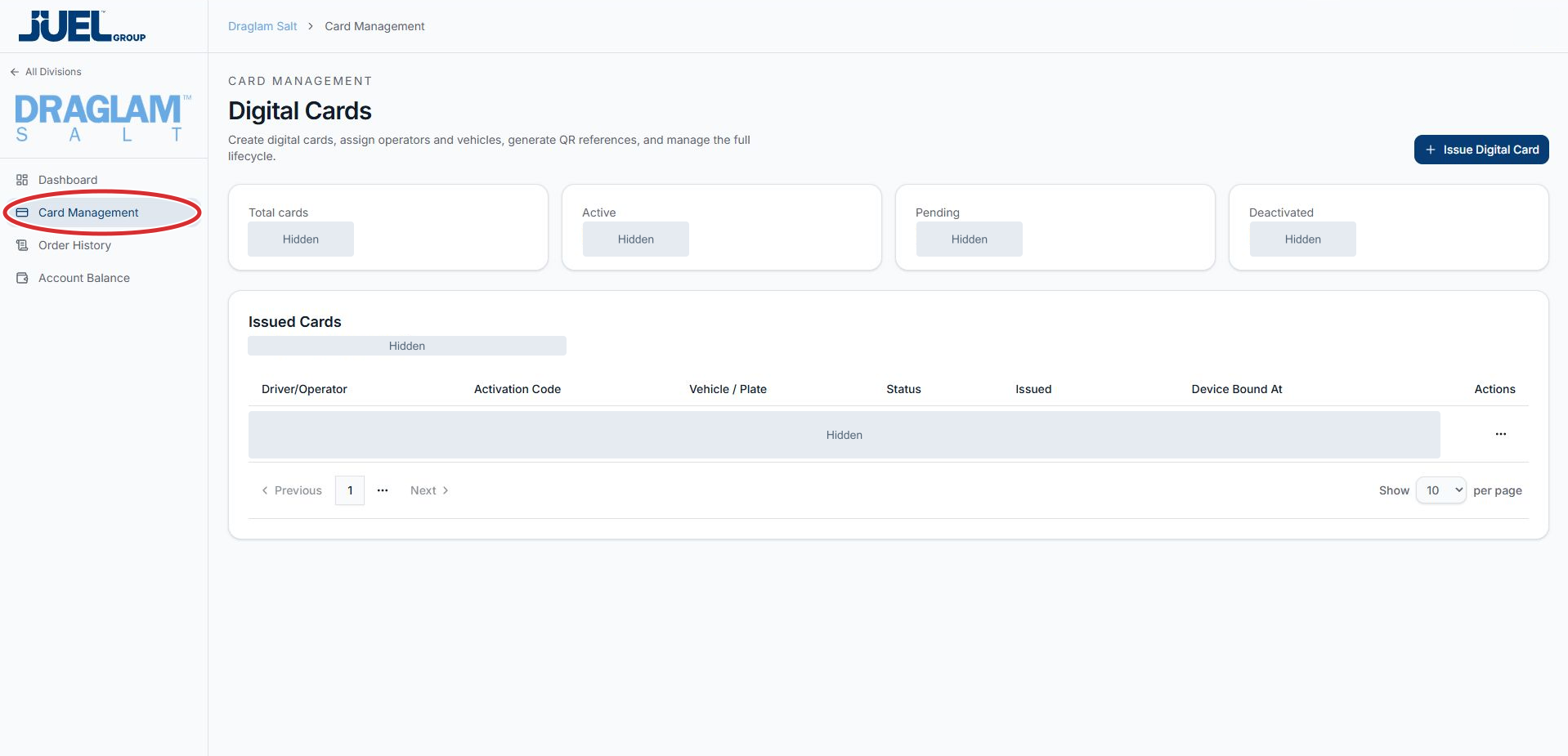
Start with Card Management, then check the division name at the top.
Full app view · red circles show where to look. Select View larger, then Actual size to zoom in. - 2
Review the card counts
Read the Total cards, Active, Pending and Deactivated summary cards. These provide a quick overview; use the individual row’s Status when checking a particular operator.
Review the card summaries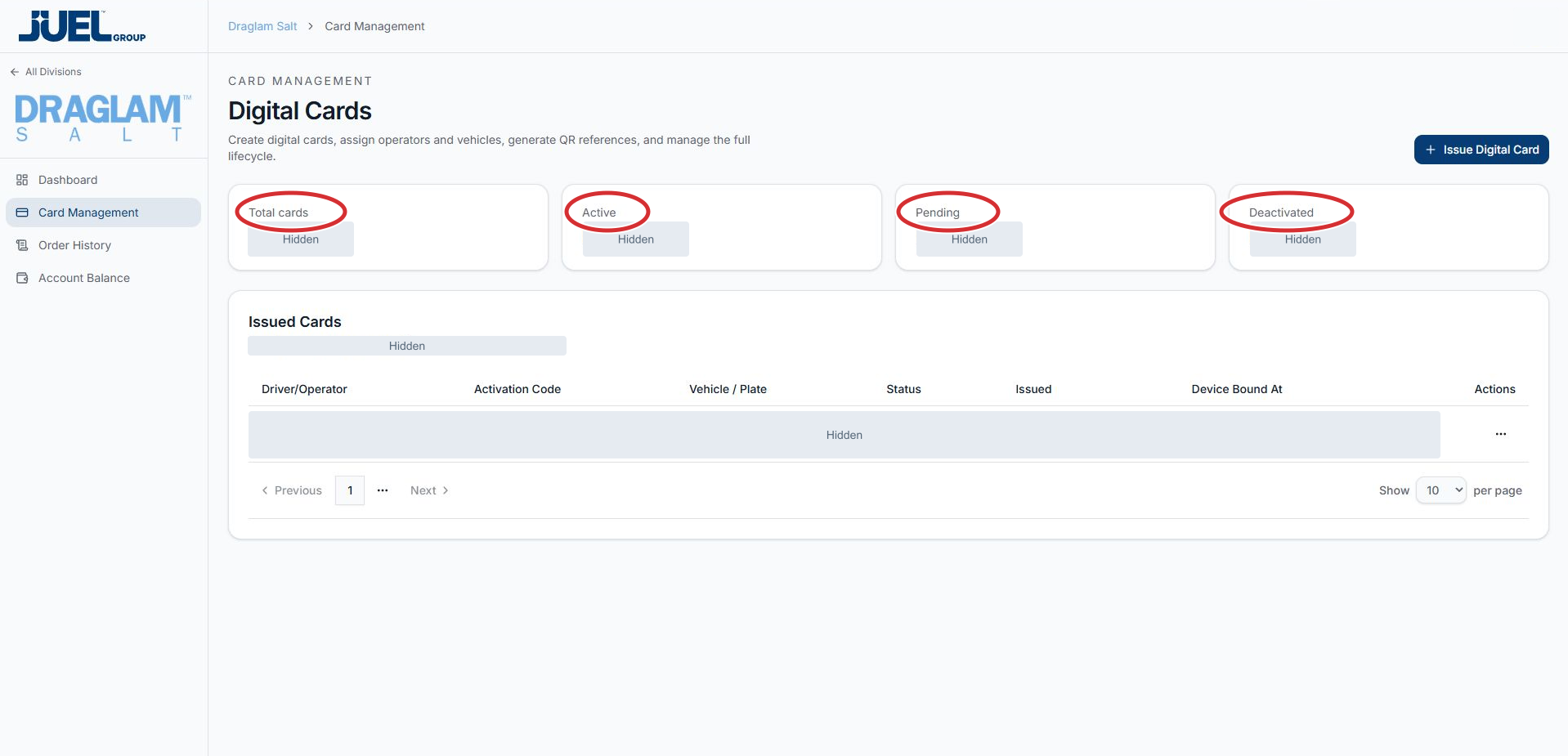
Read the row’s Status when checking an individual card; private counts are hidden.
Full app view · red circles show where to look. Select View larger, then Actual size to zoom in. - 3
Find the correct card in Issued Cards
Look under Driver/Operator and match Vehicle / Plate to the intended operator. The same row shows Activation Code, Status, Issued and Device Bound At. Keep activation codes private.
Read the issued card list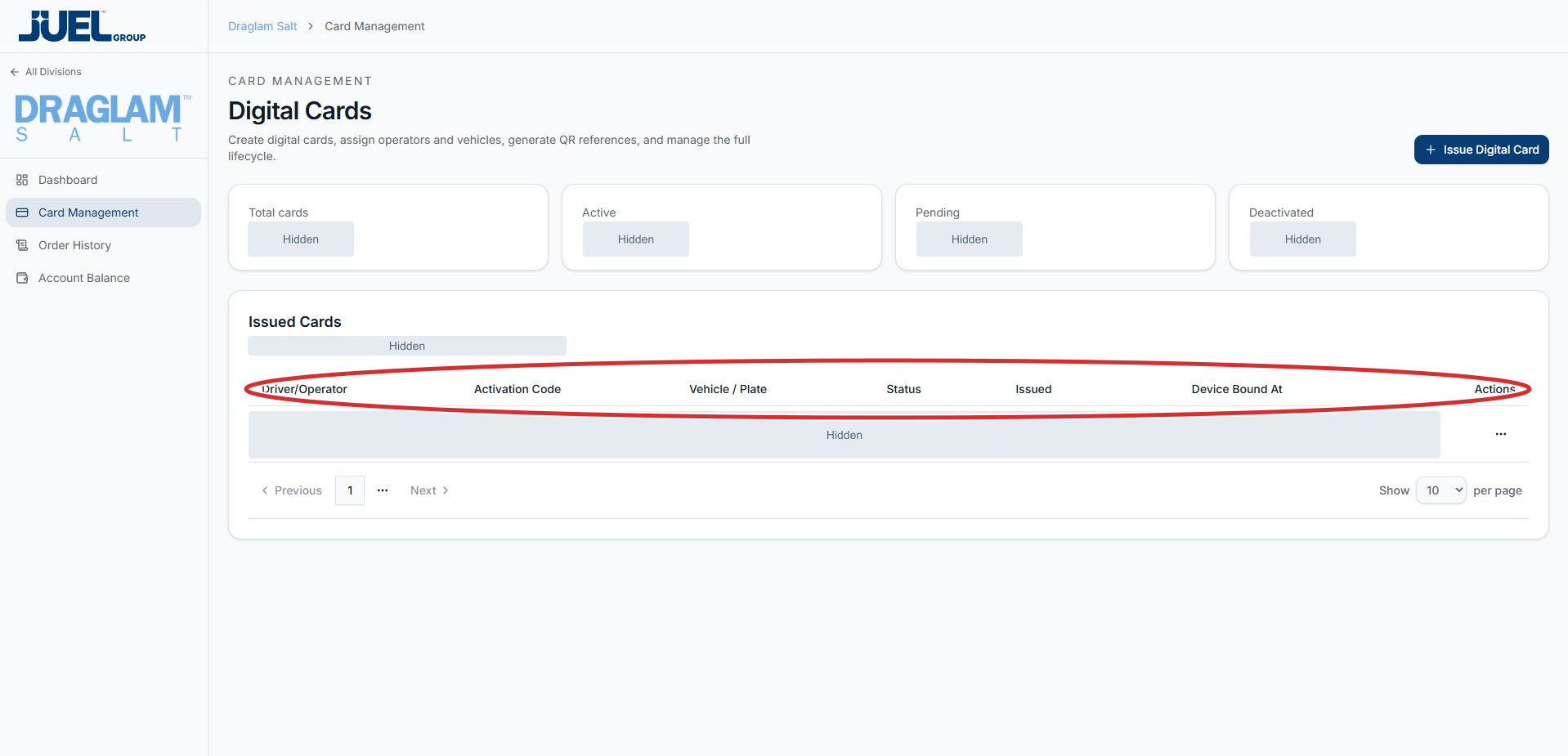
Match the operator and vehicle in the same row. Record values and activation codes are hidden in this example.
Full app view · red circles show where to look. Select View larger, then Actual size to zoom in. - 4
Browse the list
Use Previous, the page numbers and Next below the table to move between pages. Use the per-page selector at the lower right to choose how many rows to display. Unavailable page controls are disabled.
Browse issued cards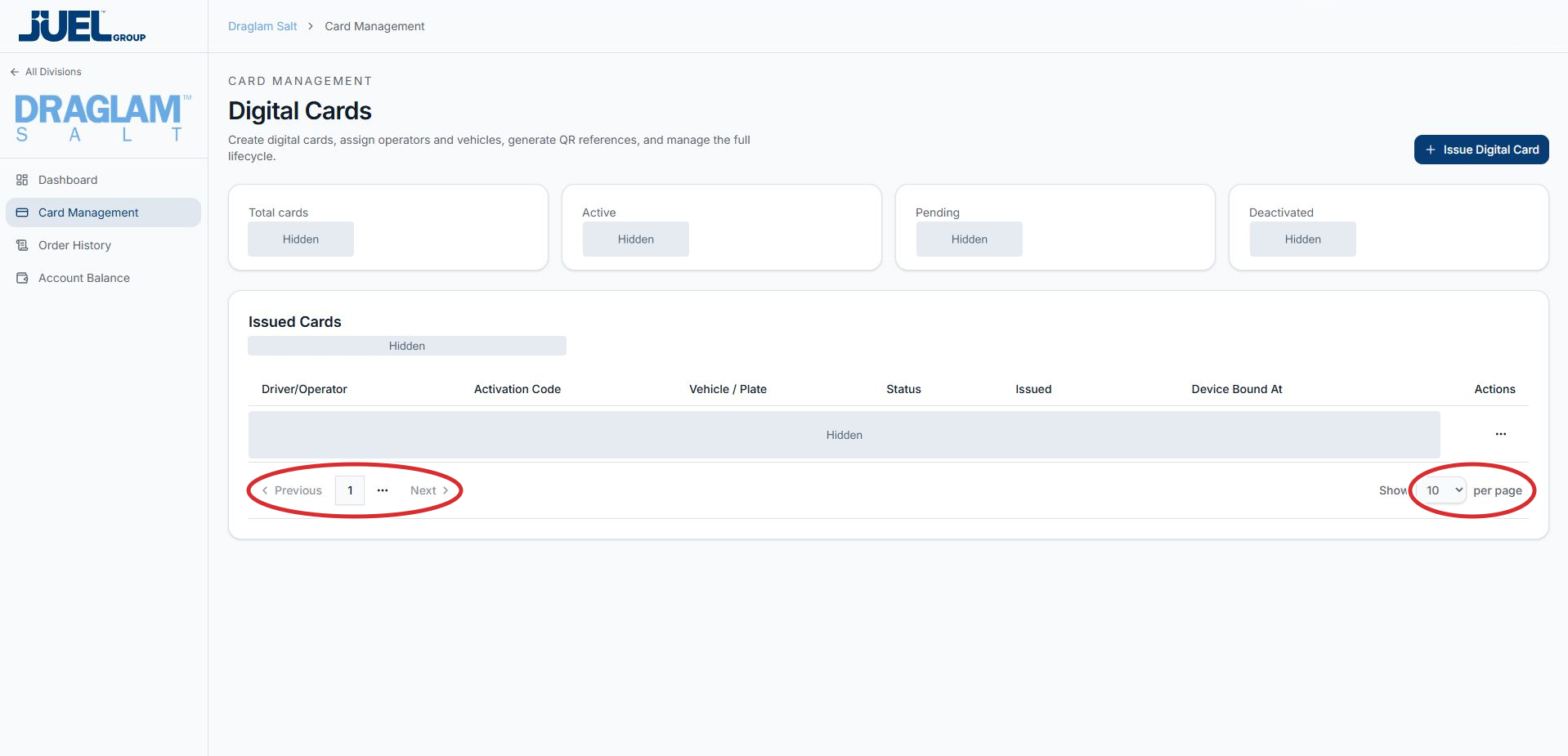
The page controls are below Issued Cards. Disabled controls cannot move to another page.
Full app view · red circles show where to look. Select View larger, then Actual size to zoom in. - 5
Open the card’s Actions menu
At the far right of the intended row, select the three-dot button under Actions. The menu shows Edit, Regenerate code, Resend code, Deactivate and Remove. For a name or vehicle correction, choose Edit and follow the editing guide. Click outside the menu to close it without choosing an action.
Find the card’s Actions button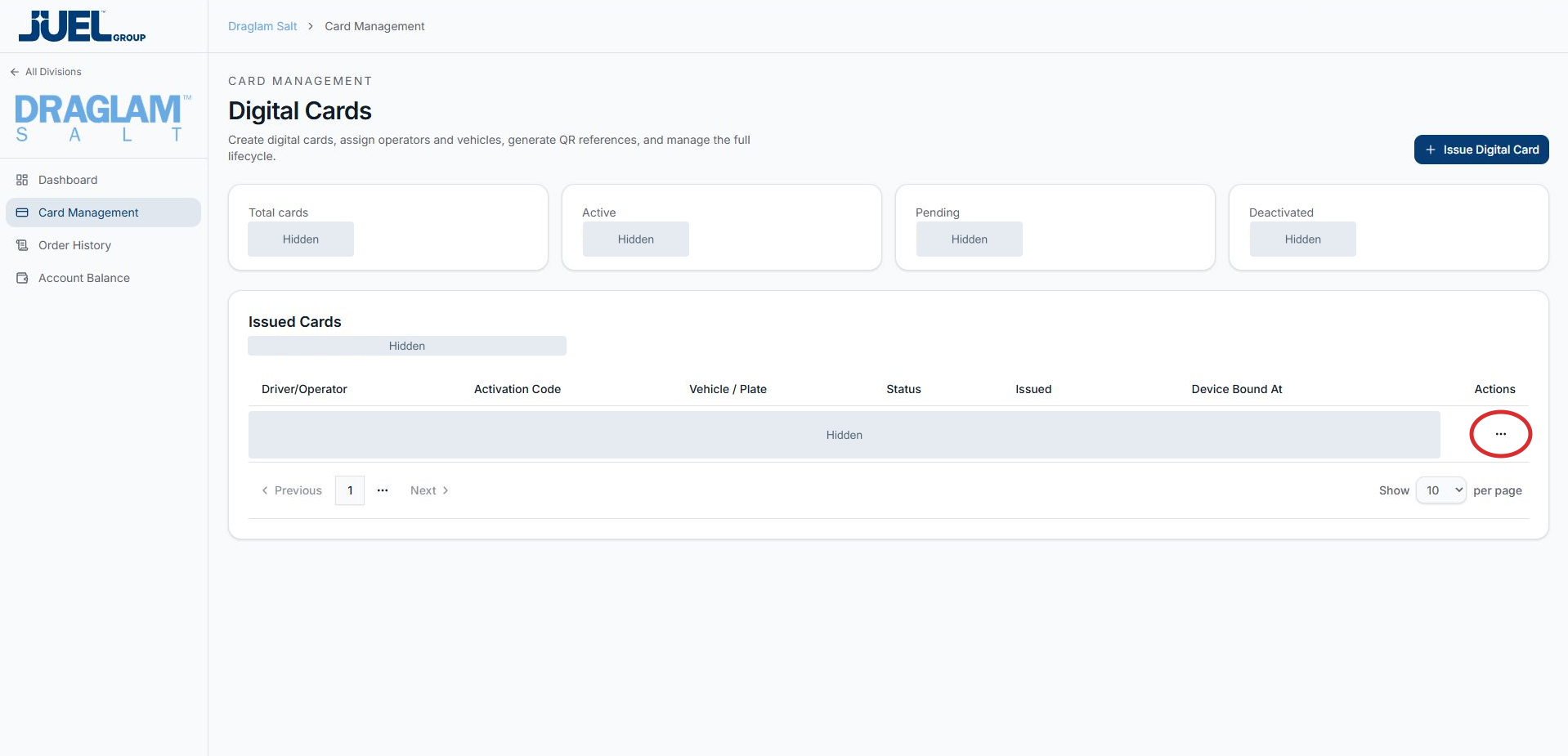
Identify the correct operator first, then open the three-dot Actions button in that row.
Full app view · red circles show where to look. Select View larger, then Actual size to zoom in.Read the card action choices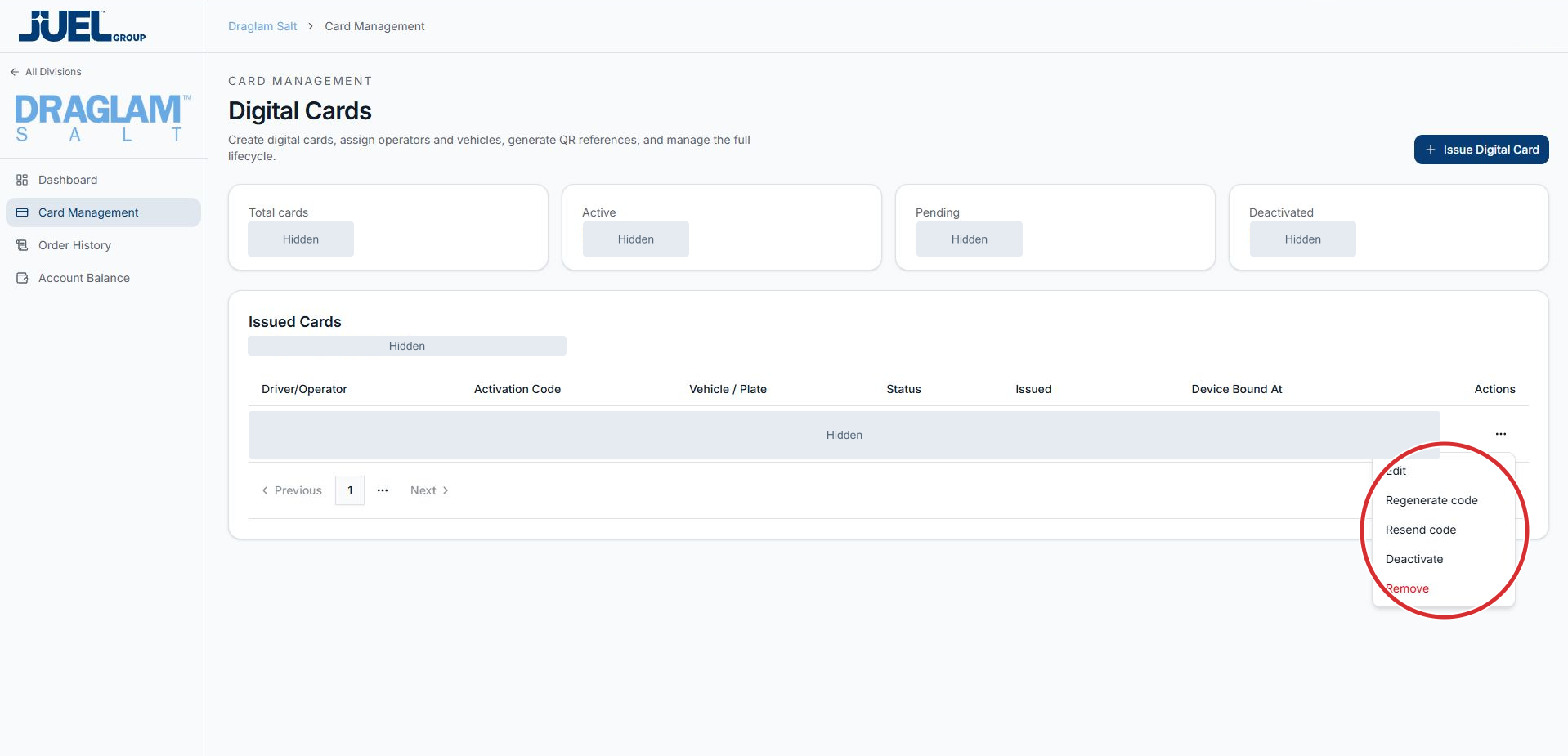
The customer menu contains Edit, Regenerate code, Resend code, Deactivate and Remove. Choose Edit for name or vehicle corrections.
Full app view · red circles show where to look. Select View larger, then Actual size to zoom in.
Manage Digital Cards
Video coming soon
We’re preparing this tutorial.
The written guide is available below.