
Issue a Digital Card
Complete the operator name, email and optional vehicle details.
In Card Management, select Issue Digital Card. Operator name and Operator email are required; Vehicle / plate is optional. Review the current division before submitting.
Open Card Management (opens in a new tab)Jump to a step
Step-by-step guide
6 stepsBefore you start
- The operator’s correct name and email address.
- Vehicle or plate details, if you want to include them.
- The division that should issue the card is selected.
- 1
Open Card Management
Check the division name at the top of the portal, then select Card Management in the left navigation. The Digital Cards page contains the Issued Cards list.
Open Card Management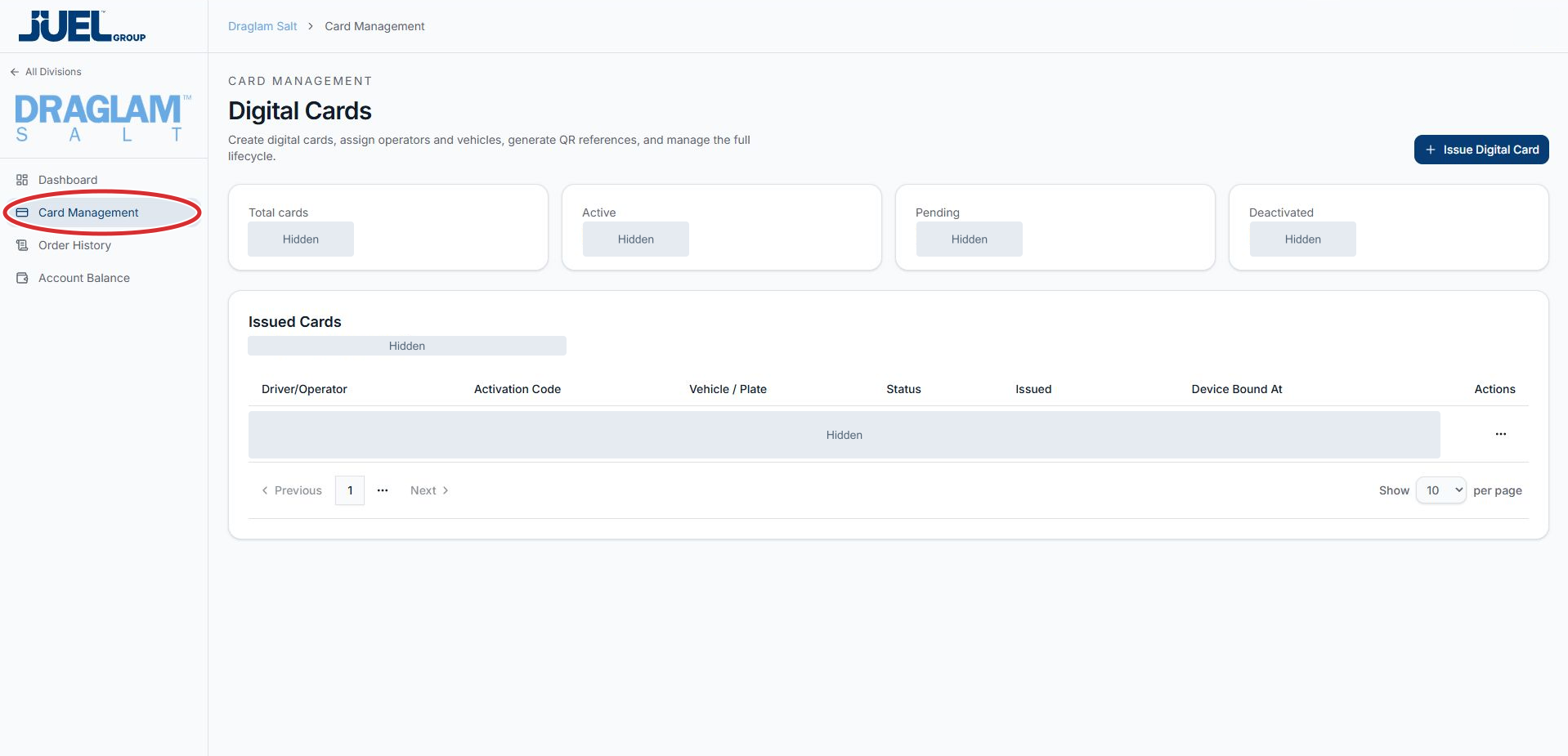
Start with Card Management, then check the division name at the top.
Full app view · red circles show where to look. Select View larger, then Actual size to zoom in. - 2
Select Issue Digital Card
Select Issue Digital Card at the top right of the page. The Issue a Digital Card form opens over the card list.
Open the issuing form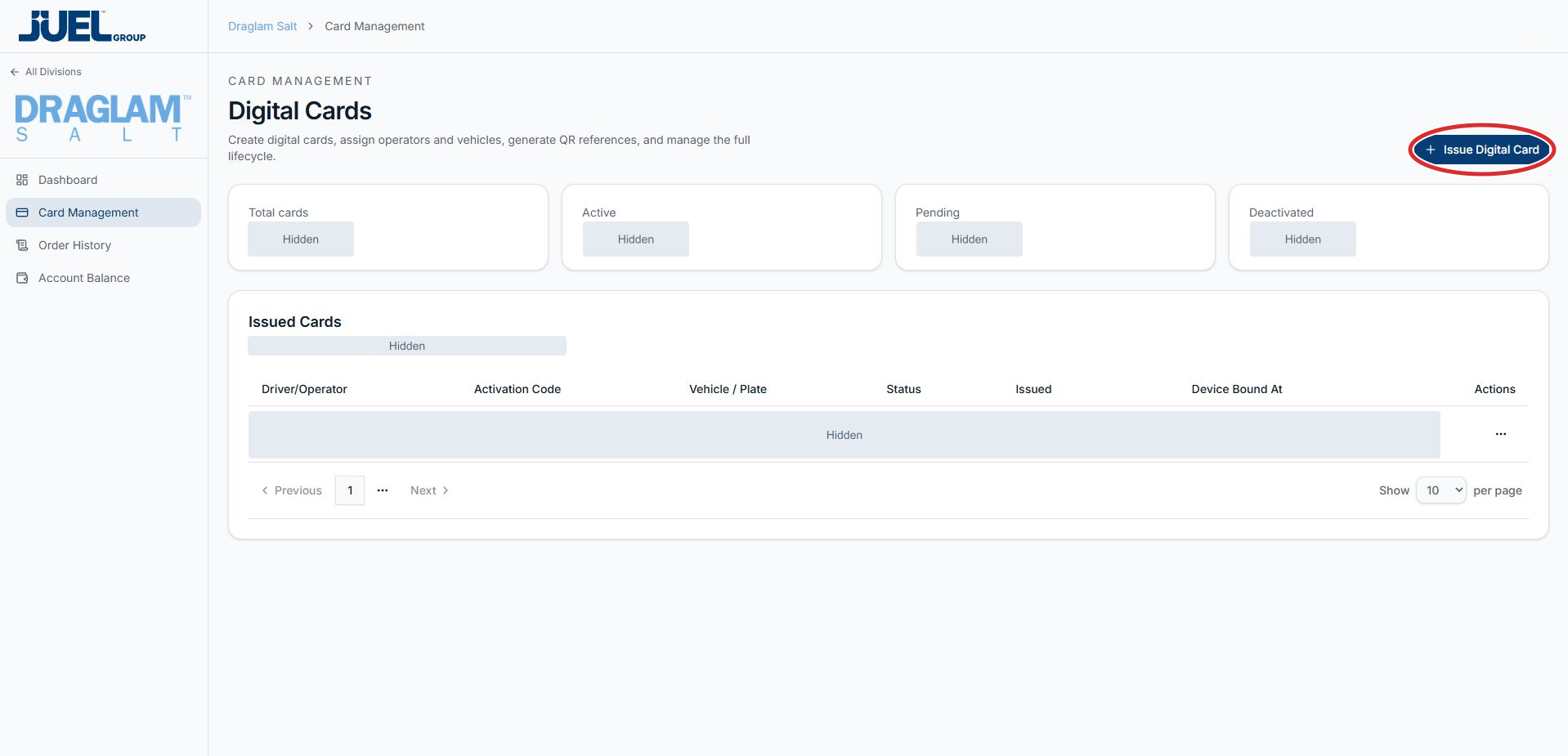
This opens the form over the Digital Cards page.
Full app view · red circles show where to look. Select View larger, then Actual size to zoom in. - 3
Enter the operator details
Enter the operator’s name in Operator name and their email address in Operator email. Both fields are required. Check the spelling and email address before continuing; the example text in the screenshot is placeholder text.
Complete the operator fields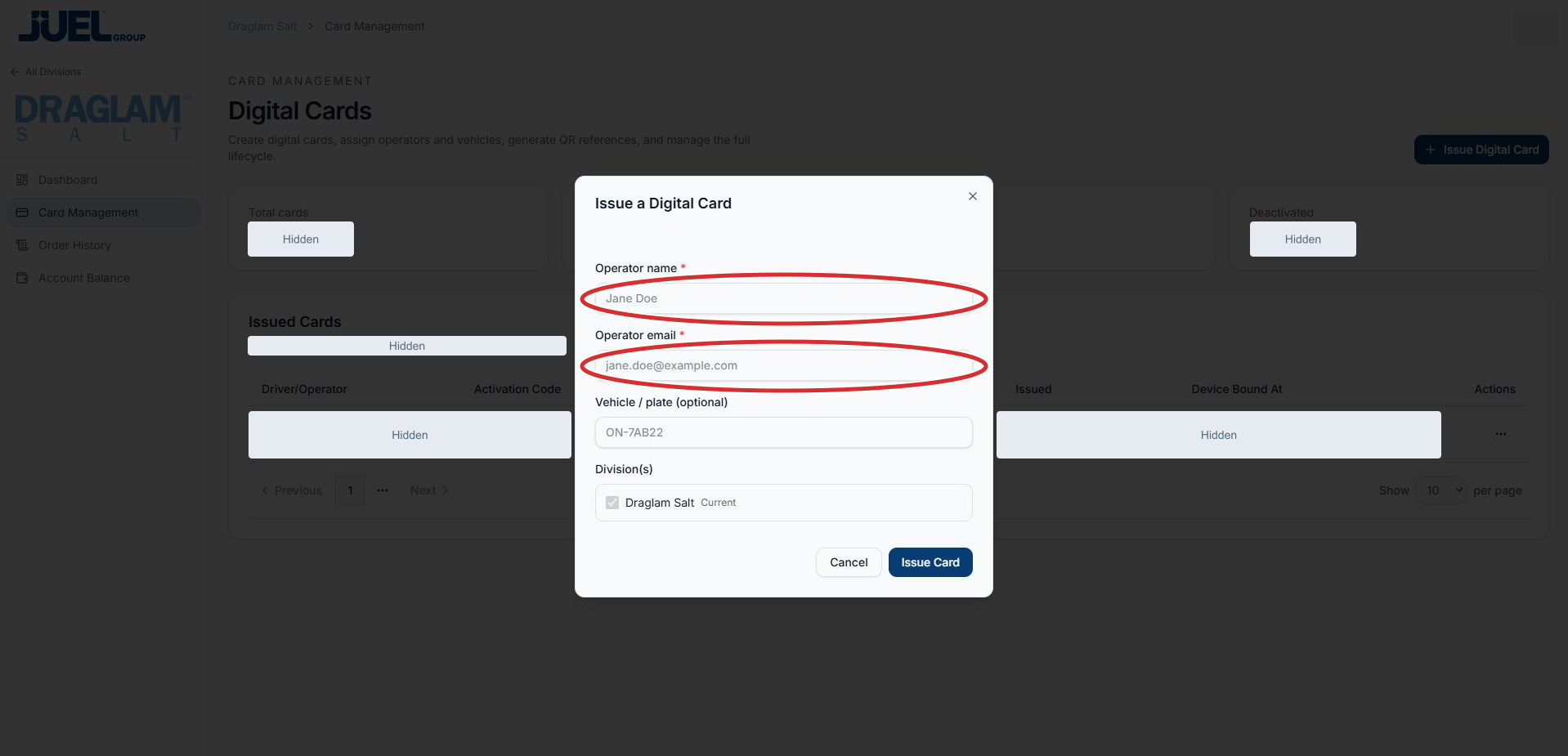
Both fields are required. The sample name and email are the app’s placeholder text.
Full app view · red circles show where to look. Select View larger, then Actual size to zoom in. - 4
Add vehicle or plate details if needed
Use Vehicle / plate (optional) to identify the operator’s vehicle or plate. Leave this field blank if you do not need it. Review any value you enter for accuracy.
Add the optional vehicle or plate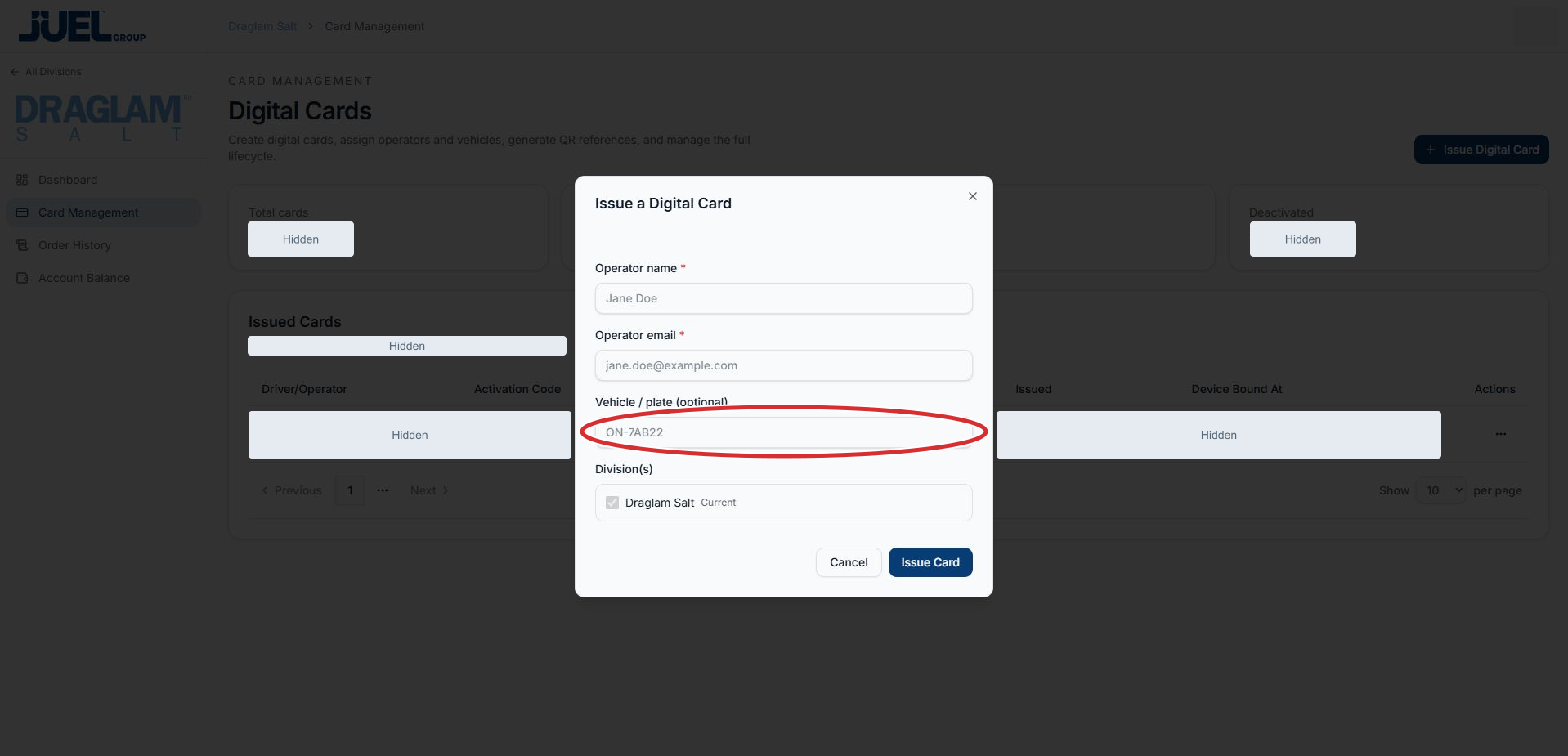
Enter vehicle details if needed, or leave the optional field blank.
Full app view · red circles show where to look. Select View larger, then Actual size to zoom in. - 5
Review the operator and division
Check the name, email and any vehicle details. Under Division(s), confirm that the selected division is the intended business. If it is wrong, select Cancel, switch divisions and reopen the form.
Check the issuing division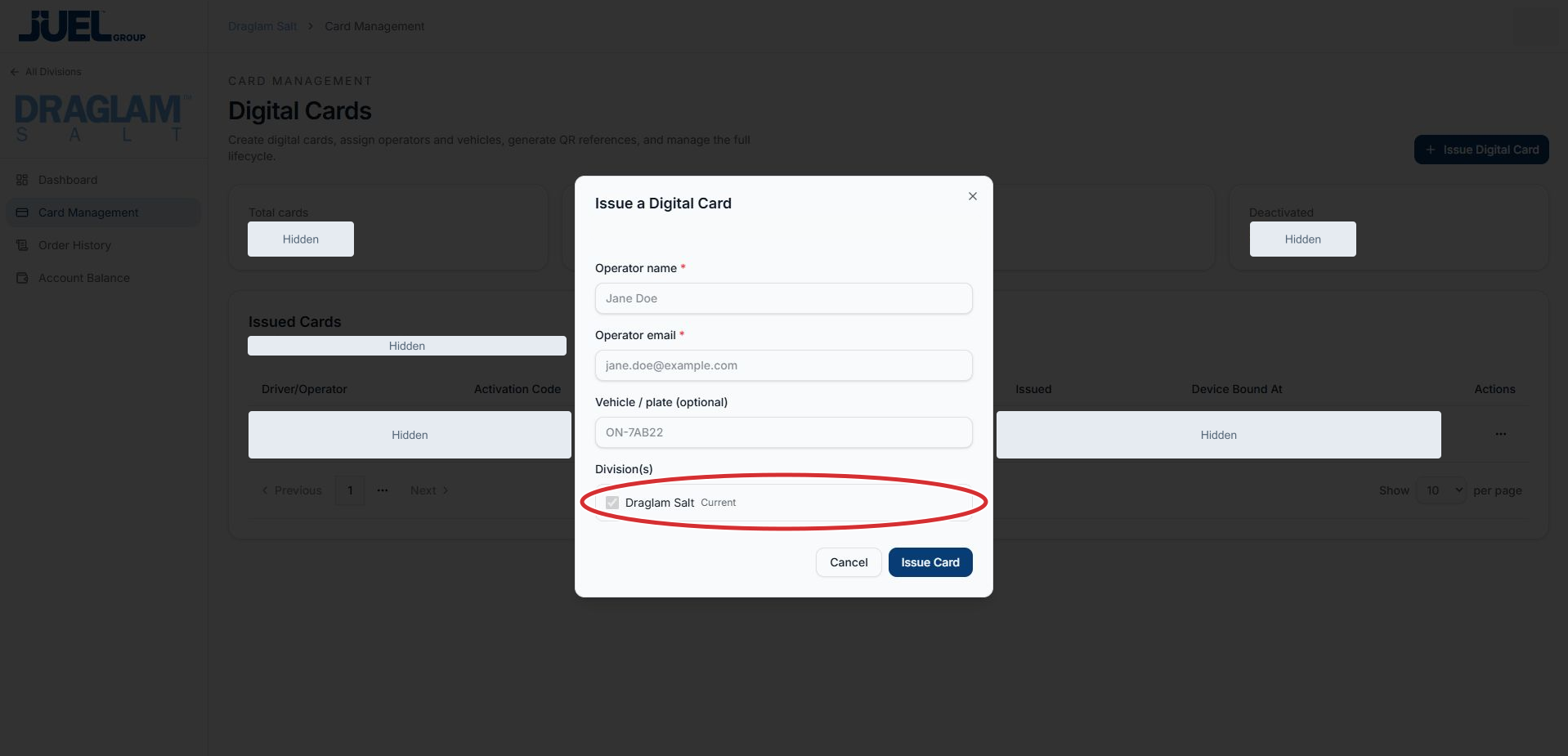
Review the operator details and the selected division before submitting.
Full app view · red circles show where to look. Select View larger, then Actual size to zoom in. - 6
Issue the card when ready
Select Issue Card to submit the completed form, or Cancel to close it without issuing a card. Read any field or result message before continuing. When you return to Issued Cards, check the operator’s row and displayed card details.
Issue or cancel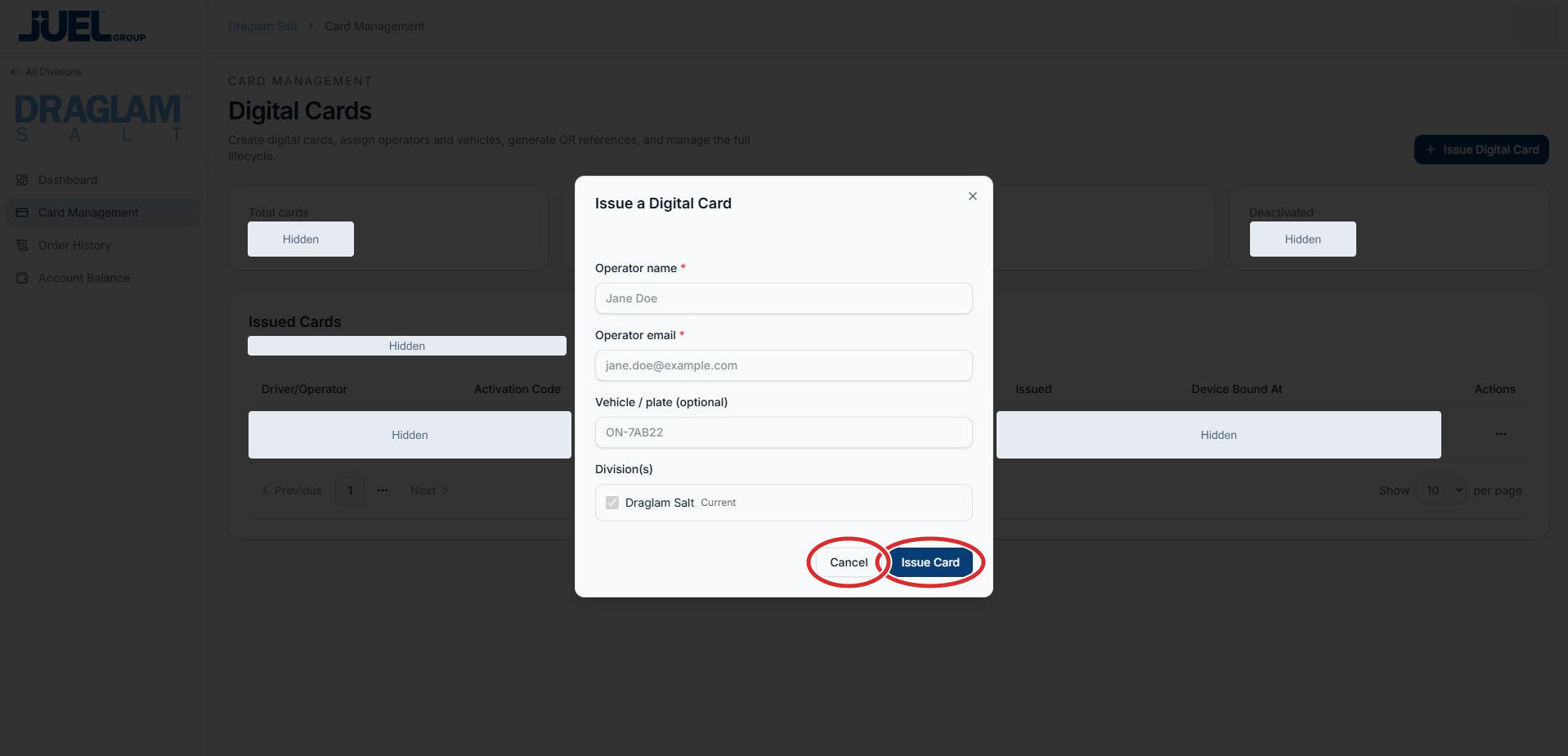
Issue Card submits the form. Cancel closes it without issuing. This screenshot shows an unsubmitted form.
Full app view · red circles show where to look. Select View larger, then Actual size to zoom in.