
Review card status and activation details
Read Status, Issued and Device Bound At in the card table.
In Card Management, find the operator’s row in Issued Cards. Read Status, Issued and Device Bound At. The summary labels are Active, Pending and Deactivated.
Open Card Management (opens in a new tab)Jump to a step
Step-by-step guide
3 stepsBefore you start
- The operator’s name and issuing division.
- 1
Open the card list
Select Card Management in the left navigation and confirm the division name at the top. Scroll to Issued Cards.
Open Card Management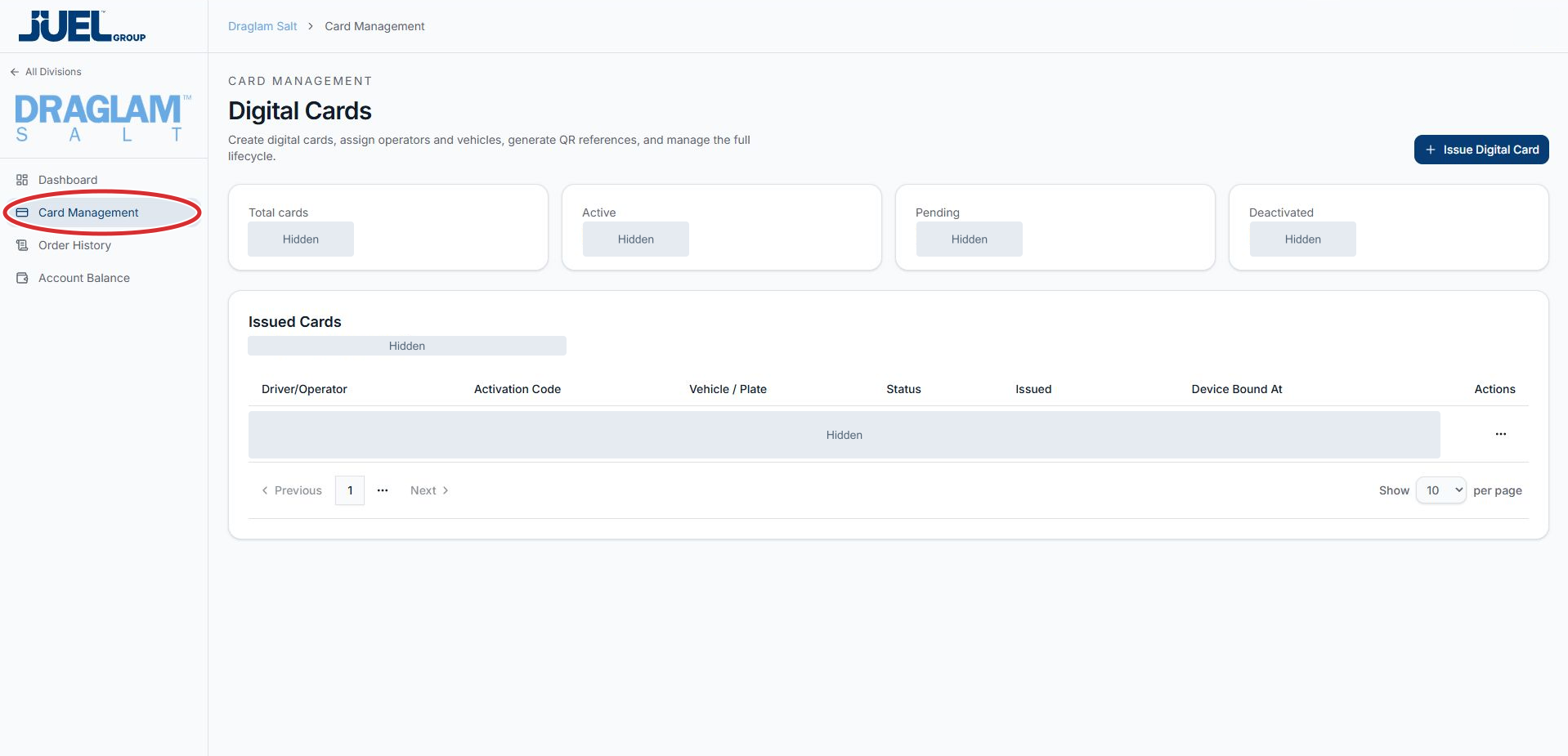
Start with Card Management, then check the division name at the top.
Full app view · red circles show where to look. Select View larger, then Actual size to zoom in. - 2
Find the operator’s row
Match Driver/Operator and Vehicle / Plate to the intended card. Use the page controls below the table if the record is on another page.
Read the issued card list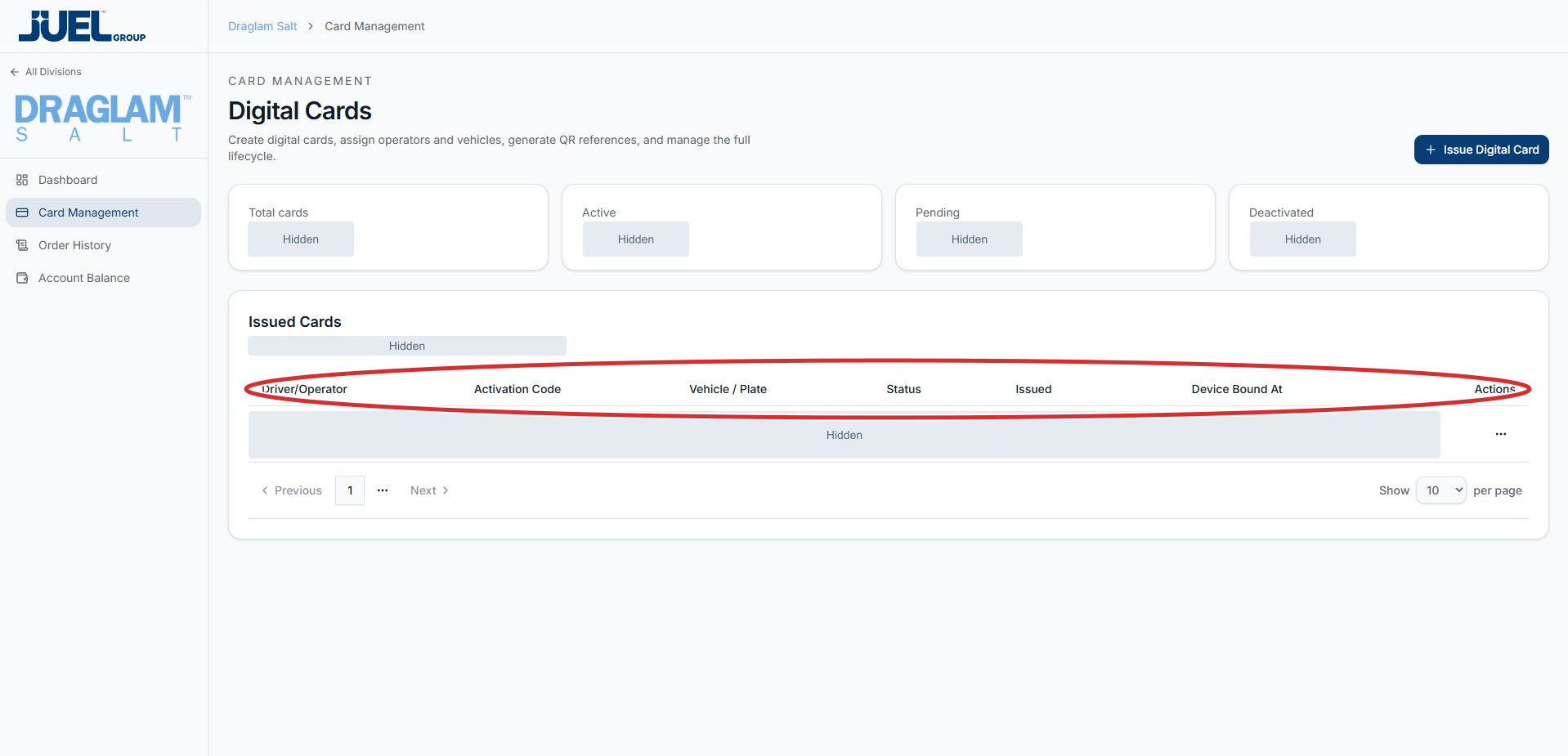
Match the operator and vehicle in the same row. Record values and activation codes are hidden in this example.
Full app view · red circles show where to look. Select View larger, then Actual size to zoom in. - 3
Read the status and dates together
Read Status, Issued and Device Bound At in the same row. The summary cards above the table use the labels Active, Pending and Deactivated. If the displayed information is unexpected, give your existing account contact the operator and division so they can help check it.
Read the status and dates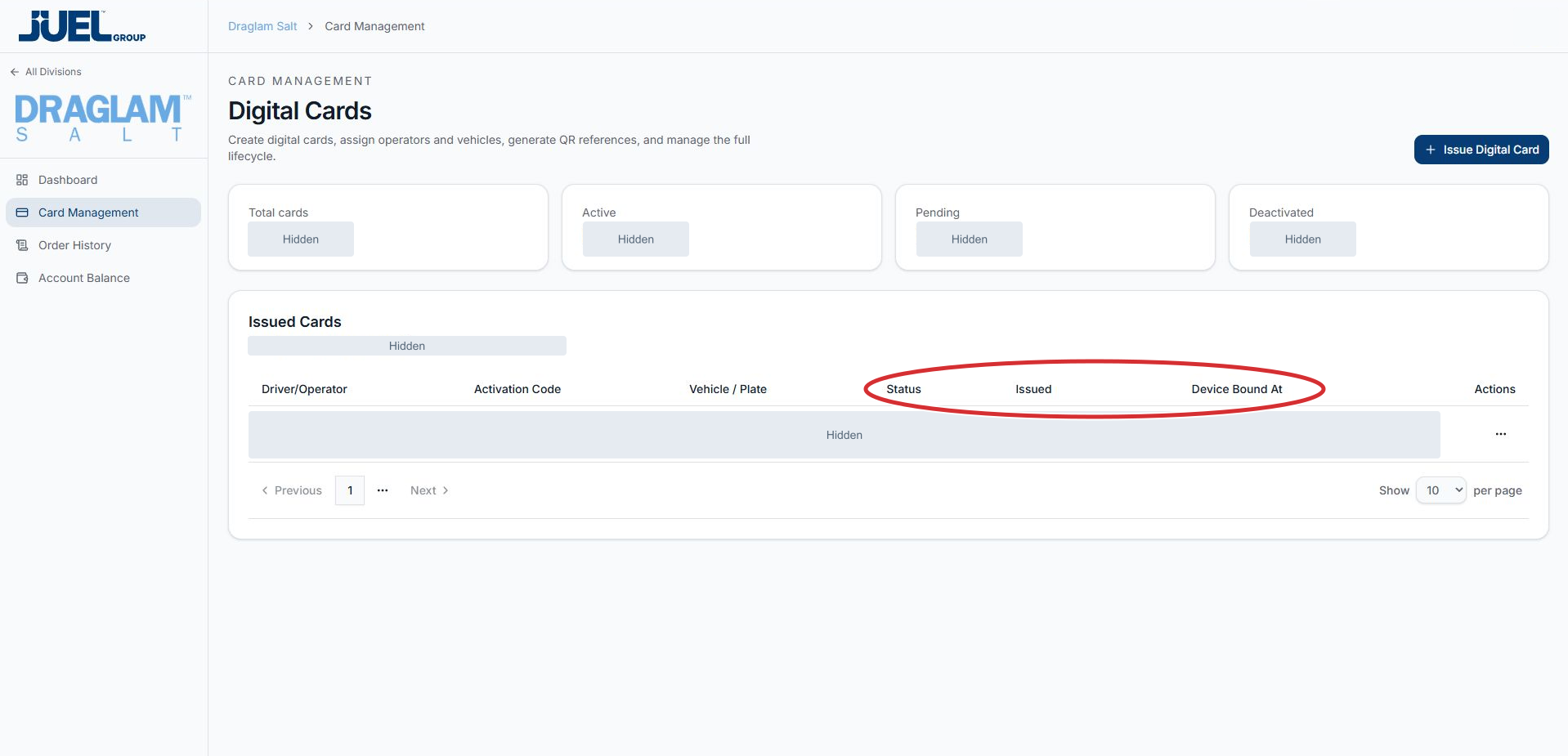
Read these columns in the intended operator’s row. Private row values are hidden.
Full app view · red circles show where to look. Select View larger, then Actual size to zoom in.