
Edit an operator name or vehicle / plate
Find the correct card, open Edit and review the fields before updating.
In Card Management, find the operator’s row, open the three-dot Actions menu and select Edit. Operator name and Vehicle / plate can be edited. Operator email and the current division are read-only in this form.
Open Card Management (opens in a new tab)Jump to a step
Step-by-step guide
5 stepsBefore you start
- The correct division and operator’s card.
- The corrected operator name or vehicle/plate information.
- 1
Find the operator’s card
Open Card Management. In Issued Cards, match Driver/Operator and Vehicle / Plate to the card you intend to edit. Check the division name before proceeding.
Read the issued card list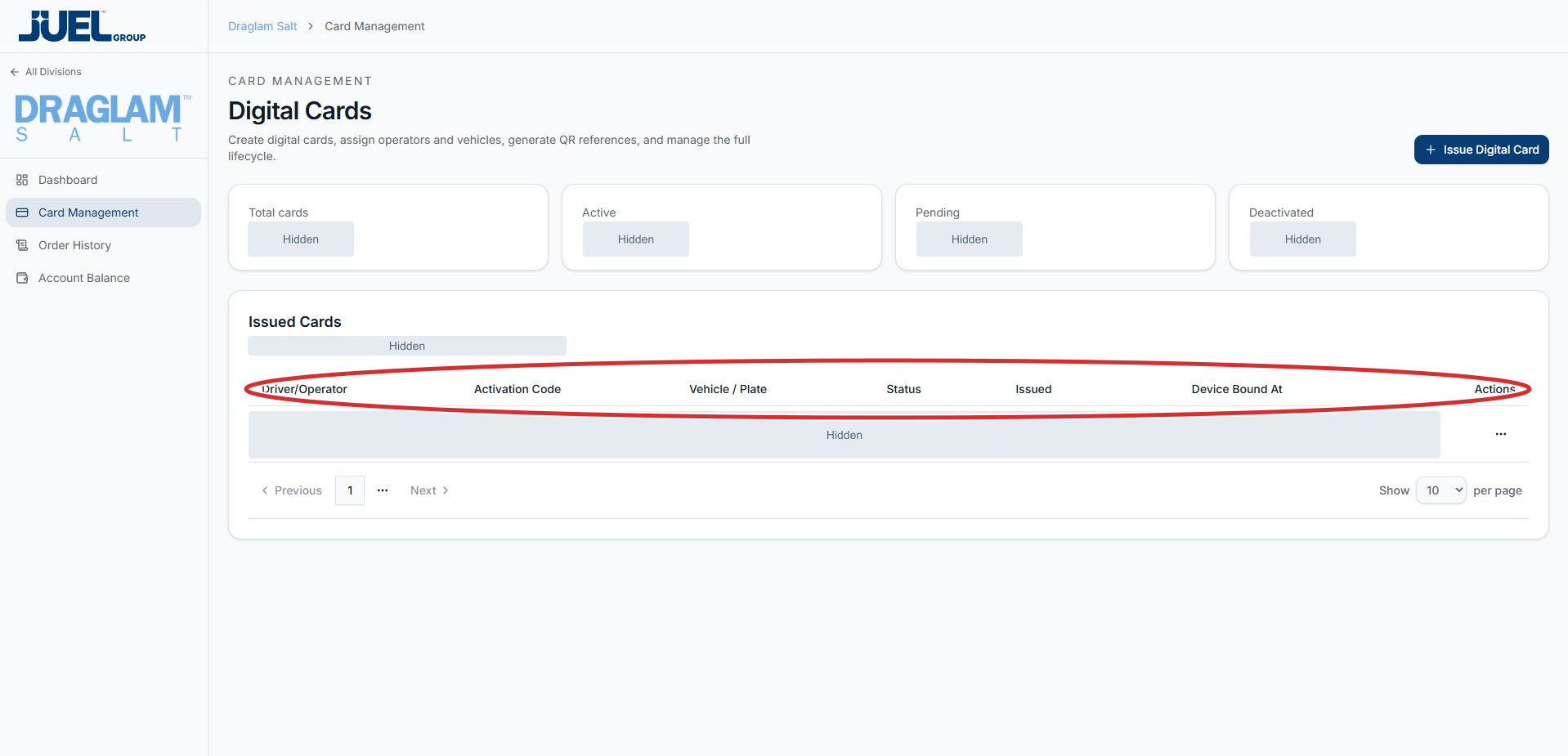
Match the operator and vehicle in the same row. Record values and activation codes are hidden in this example.
Full app view · red circles show where to look. Select View larger, then Actual size to zoom in. - 2
Choose Edit from Actions
Select the three-dot Actions button at the far right of that row, then select Edit. The Edit Digital Card form opens with the card’s existing details.
Open Edit Digital Card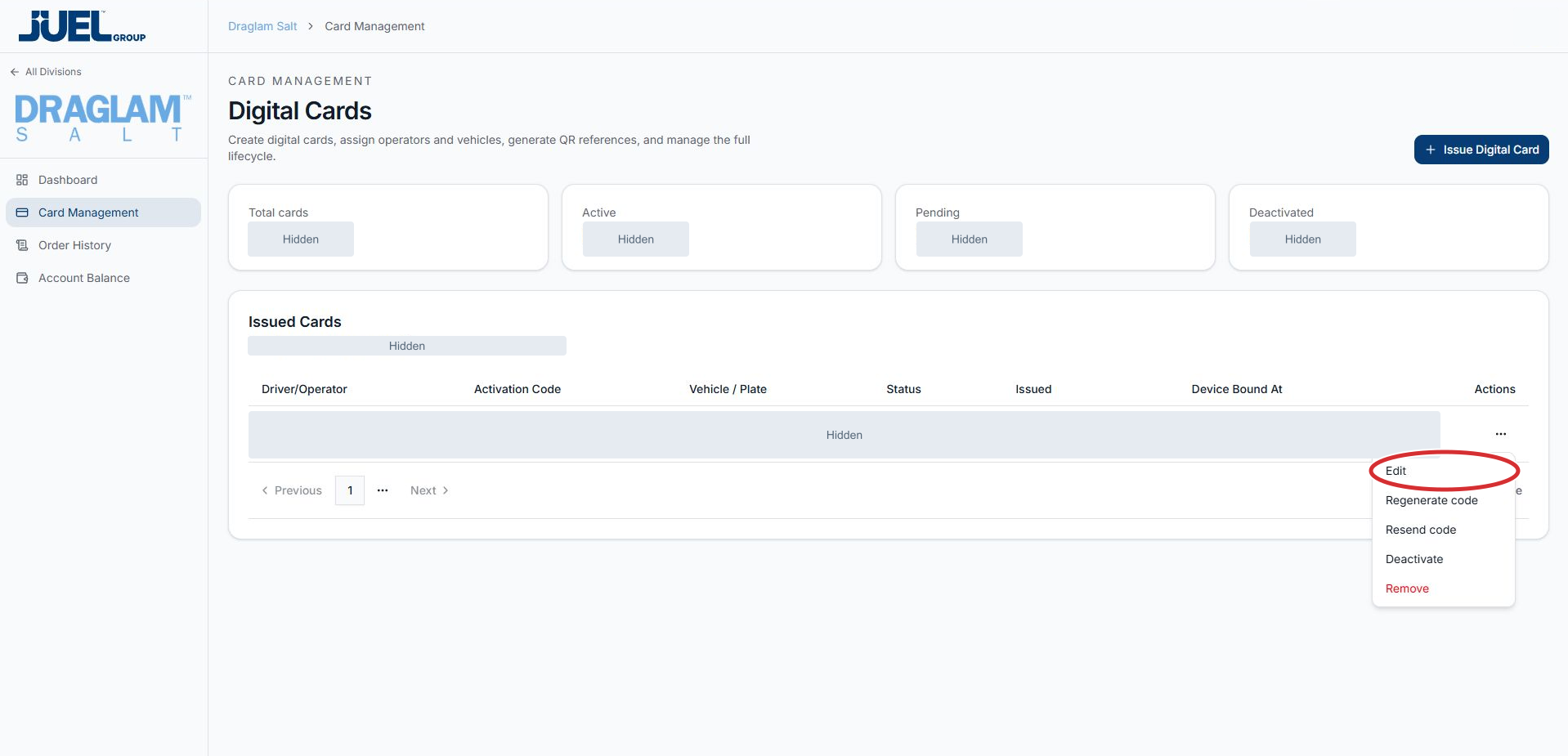
Open the intended row’s three-dot button, then choose Edit.
Full app view · red circles show where to look. Select View larger, then Actual size to zoom in. - 3
Change the name or vehicle details
Edit Operator name if a name correction is needed. Edit Vehicle / plate (optional) to update the vehicle or plate. Leave any field you do not intend to change as it is. Operator name is required.
Edit the name or vehicle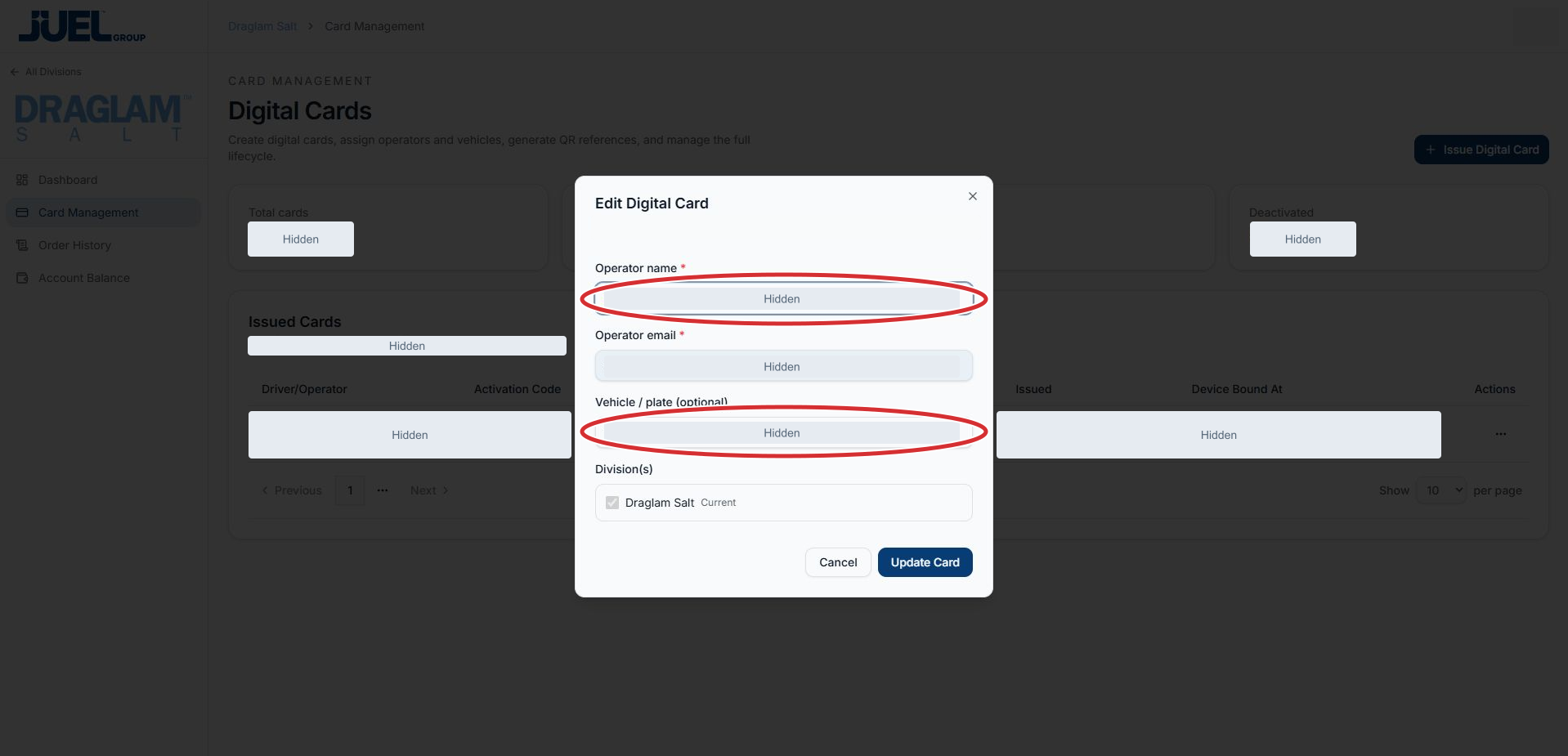
Existing values are hidden. Operator name is required; Vehicle / plate is optional.
Full app view · red circles show where to look. Select View larger, then Actual size to zoom in. - 4
Review the read-only information
Check Operator email and Division(s) against the card you intended to edit. These are read-only in the reviewed form; the email cannot be changed here. Select Cancel if you have opened the wrong card.
Review email and division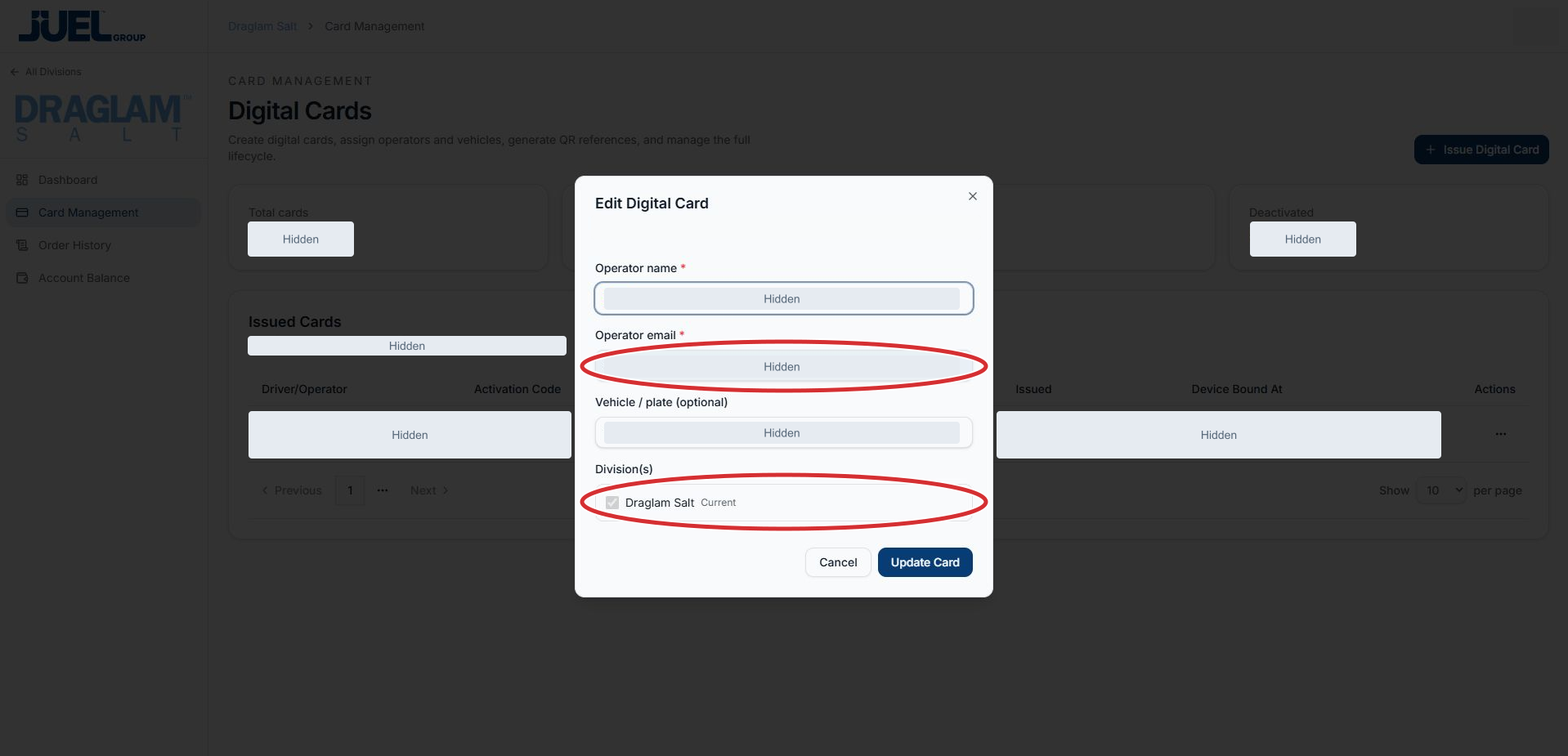
These values cannot be changed in the reviewed edit form. Check that you opened the intended card.
Full app view · red circles show where to look. Select View larger, then Actual size to zoom in. - 5
Save when ready
Review your changes, then select Update Card to submit them. Select Cancel to leave without saving. Read any field or result message, then check the operator’s row in Issued Cards before making another change.
Review and update the card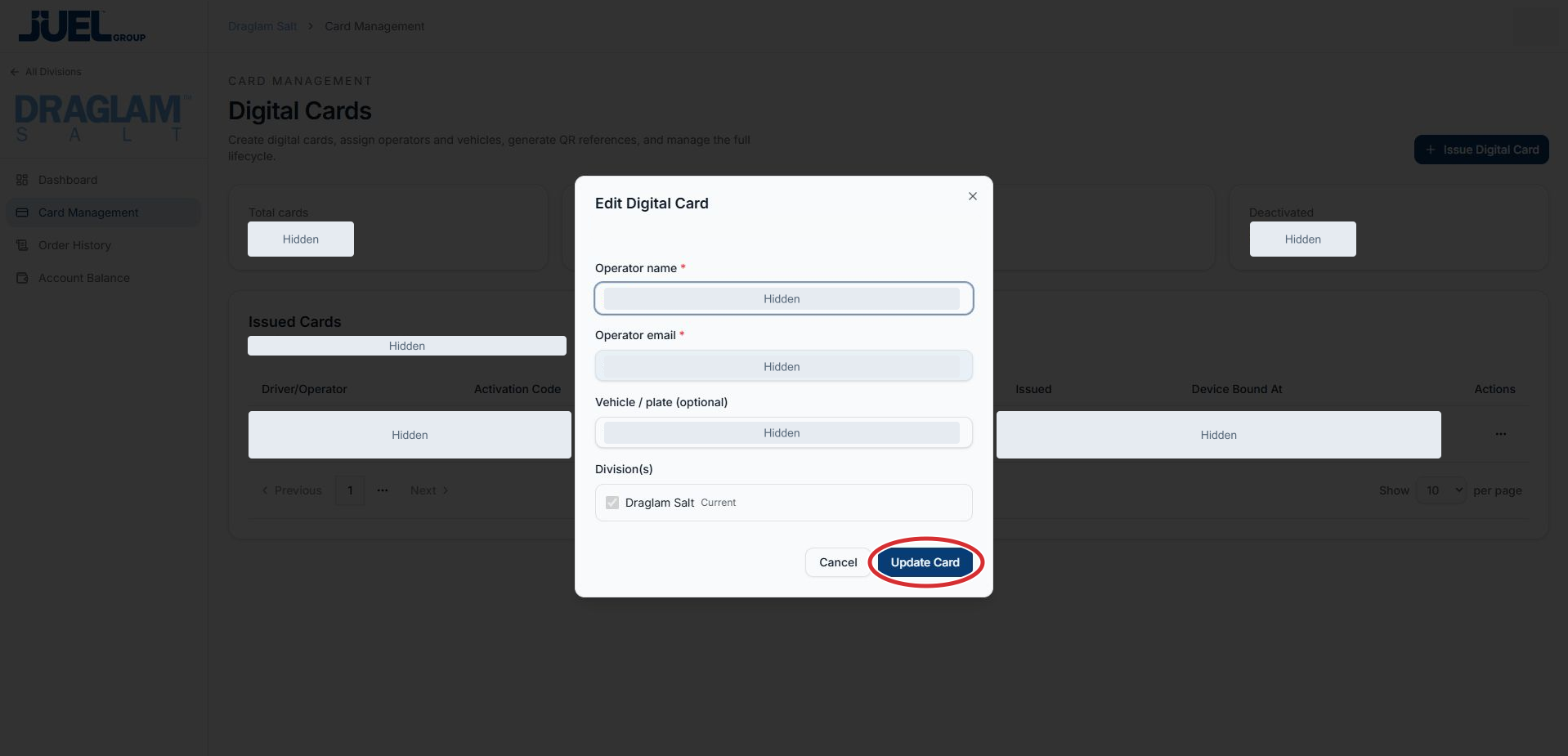
Update Card submits your changes. Use Cancel to leave without saving. No update was submitted for this screenshot.
Full app view · red circles show where to look. Select View larger, then Actual size to zoom in.