
Getting Started
Choose your division and find cards, orders and balances.
Open admin.juelapp.ca, sign in to your existing account and select your division. Use the left navigation for Card Management, Order History and Account Balance.
Open Admin Portal (opens in a new tab)Jump to a step
Step-by-step guide
4 stepsBefore you start
- Your existing JUEL App account and assigned sign-in details.
- 1
Open the Admin Portal
Go to https://admin.juelapp.ca/ and sign in with the details assigned to your account. Use your existing account to continue to the division selection or dashboard.
- 2
Select your division
On Select a Division, select the tile for the business you need. Only divisions available to your account are displayed. Check the division name in the top-left breadcrumb after the dashboard opens.
Choose a division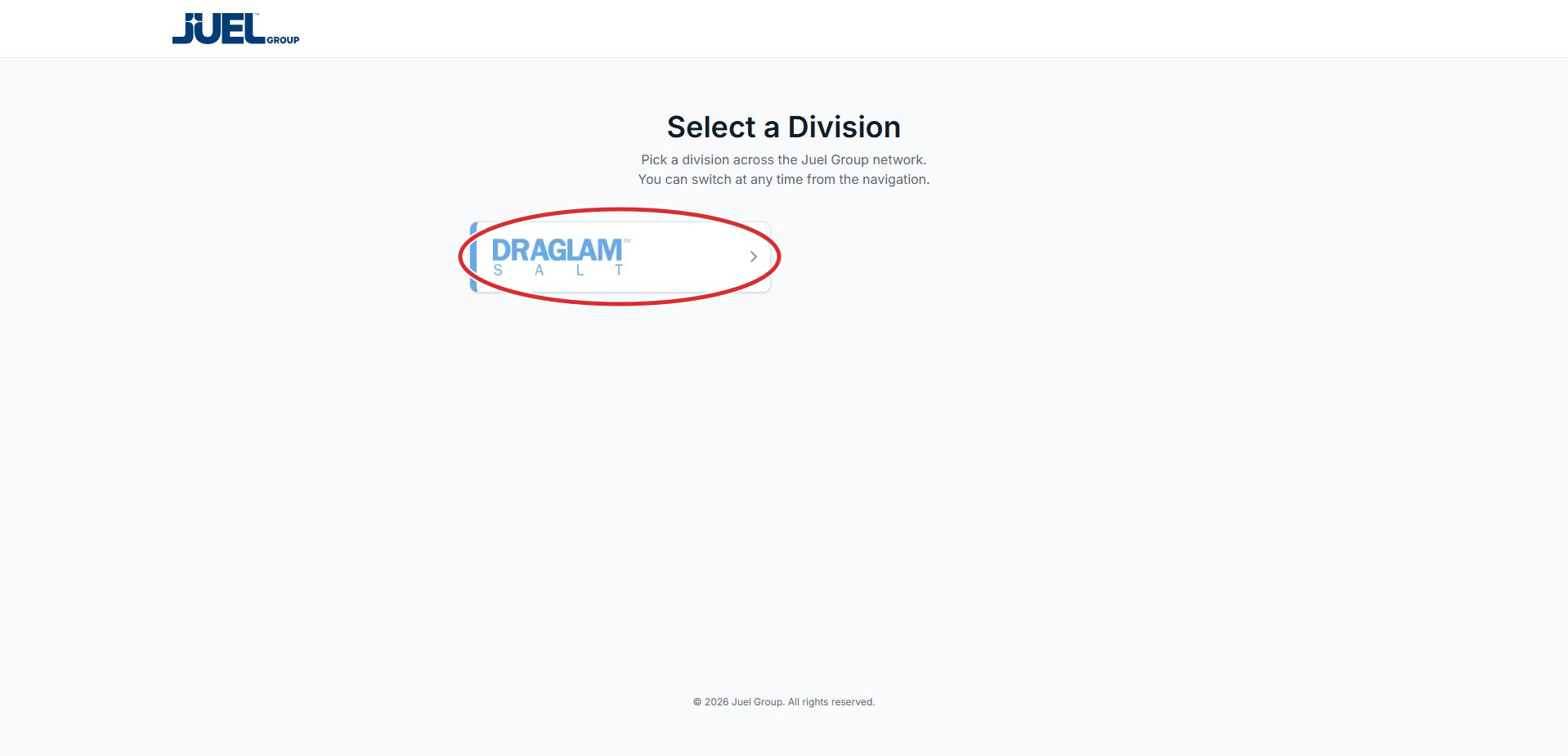
Select the tile for your division. Draglam Salt is the example available to the reviewed account.
Full app view · red circles show where to look. Select View larger, then Actual size to zoom in.Confirm the selected division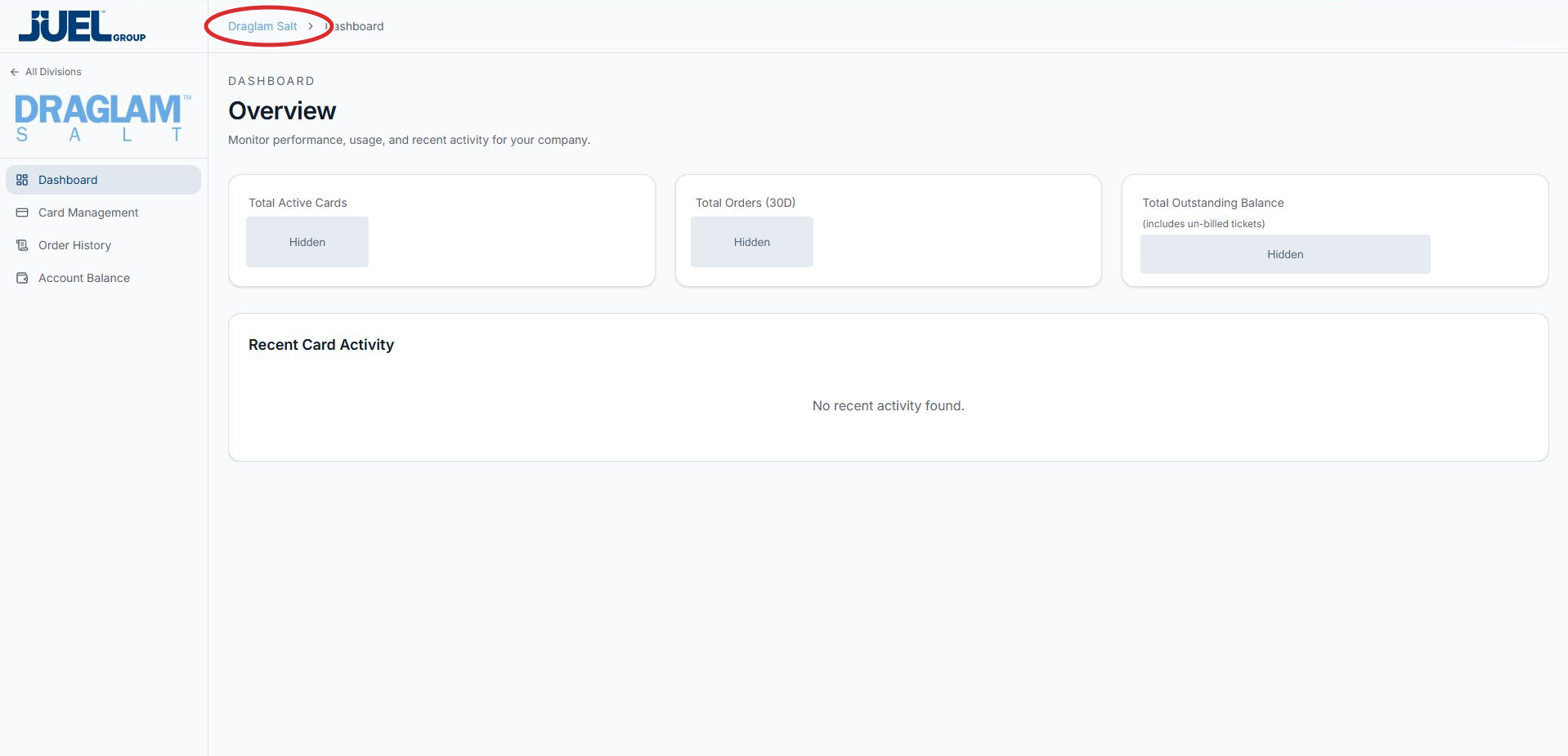
Check this name before working with cards, orders or balances.
Full app view · red circles show where to look. Select View larger, then Actual size to zoom in. - 3
Read Overview
Total Active Cards and Total Orders (30D) provide a quick summary. Total Outstanding Balance includes un-billed tickets. Recent Card Activity appears below the summary cards. Open the relevant section to review individual records.
Read your dashboard summary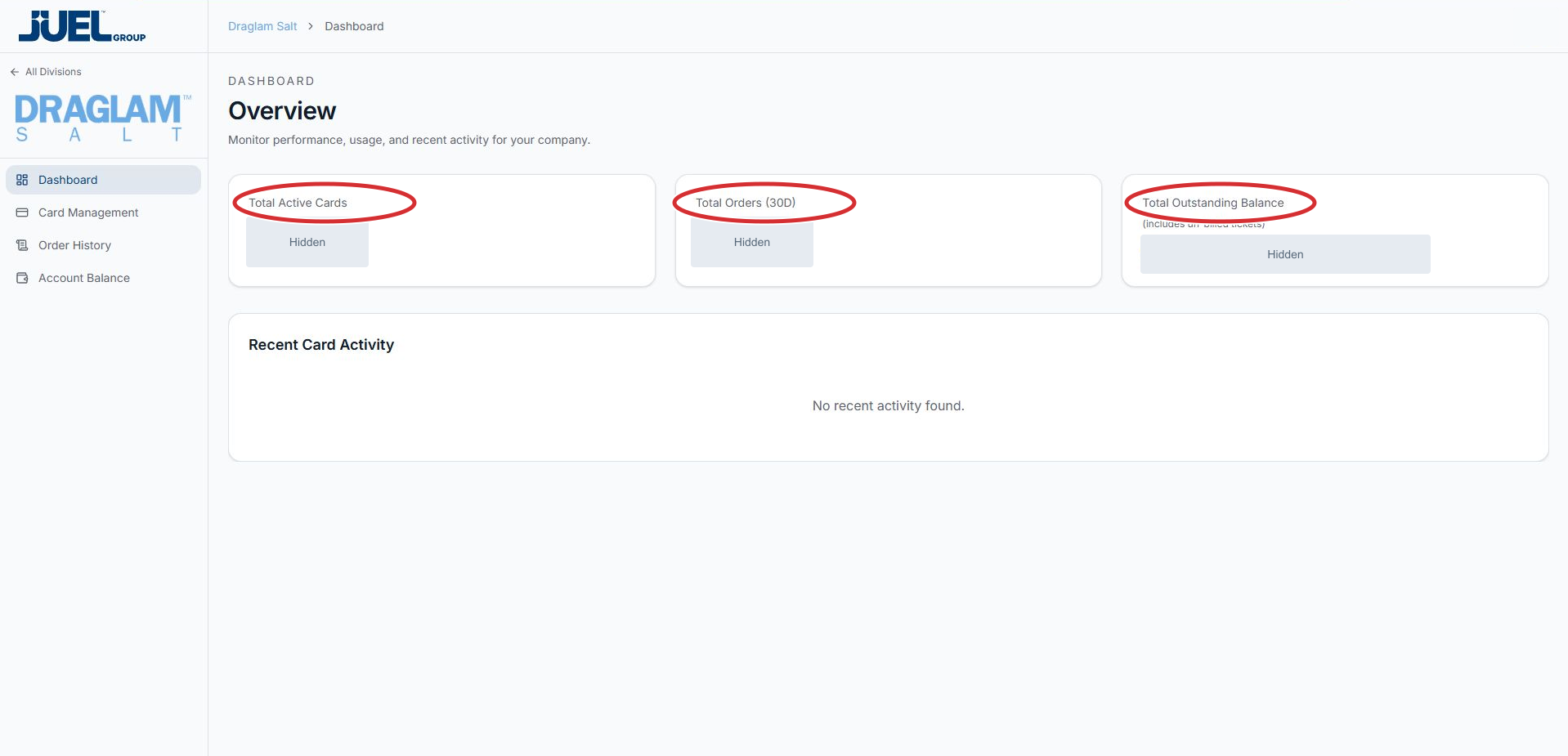
The full dashboard remains visible for context. Private figures are hidden.
Full app view · red circles show where to look. Select View larger, then Actual size to zoom in. - 4
Choose your next task
In the left navigation, select Card Management for operators and digital cards, Order History for ticket orders, or Account Balance for balances and top-ups. To work with another business, select All Divisions above the division logo.
Find your portal section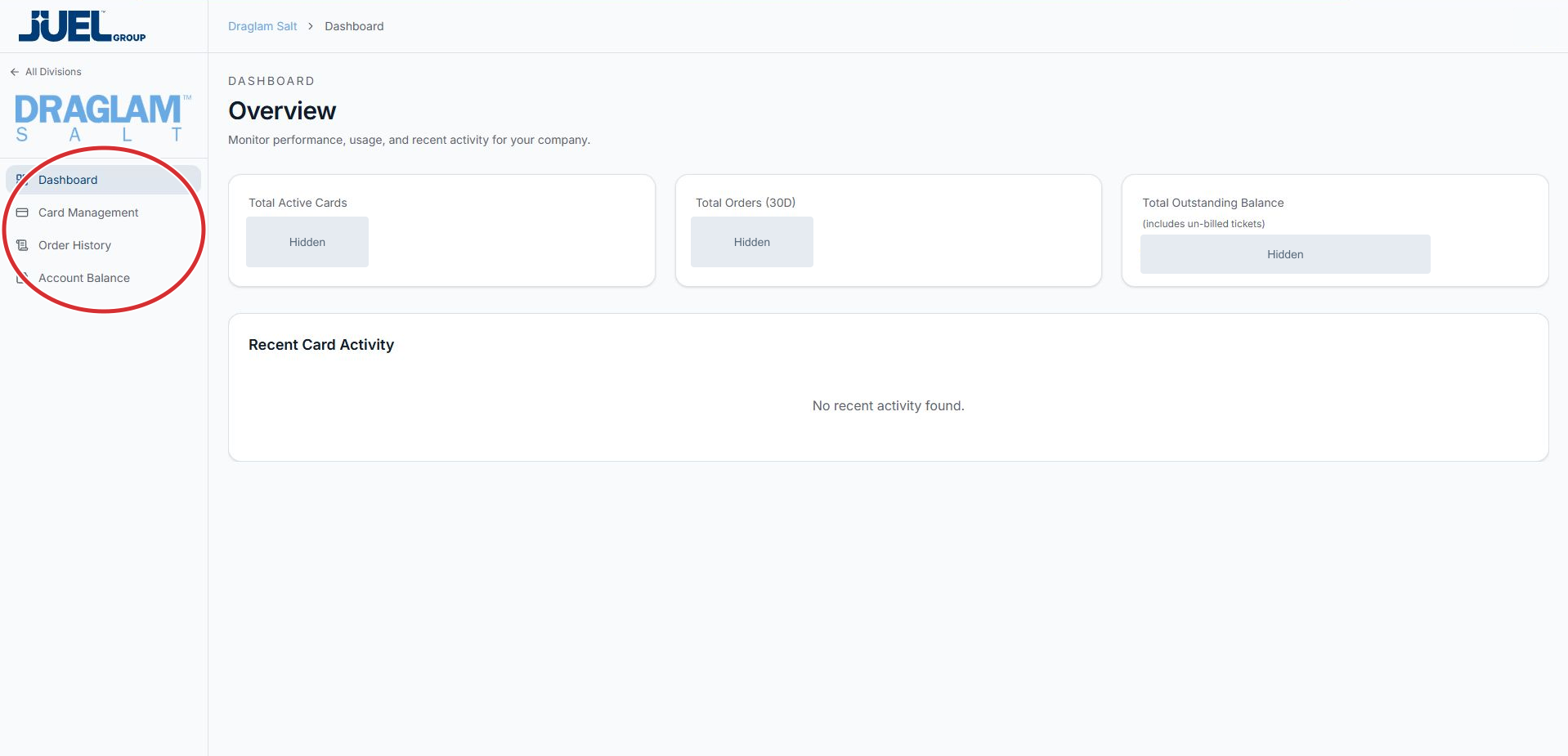
The left navigation stays visible as you move between the division’s sections.
Full app view · red circles show where to look. Select View larger, then Actual size to zoom in.