
Order History
Choose a date range and review ticket orders, products and quantities.
Open Order History, set From and To dates, and select Search. Check the displayed period and review the matching ticket orders.
Open Order History (opens in a new tab)Jump to a step
Step-by-step guide
5 stepsBefore you start
- The division and start/end dates you want to review.
- 1
Open Order History
Confirm the division name, then select Order History in the left navigation. The page heading is Ticket Orders.
Open Order History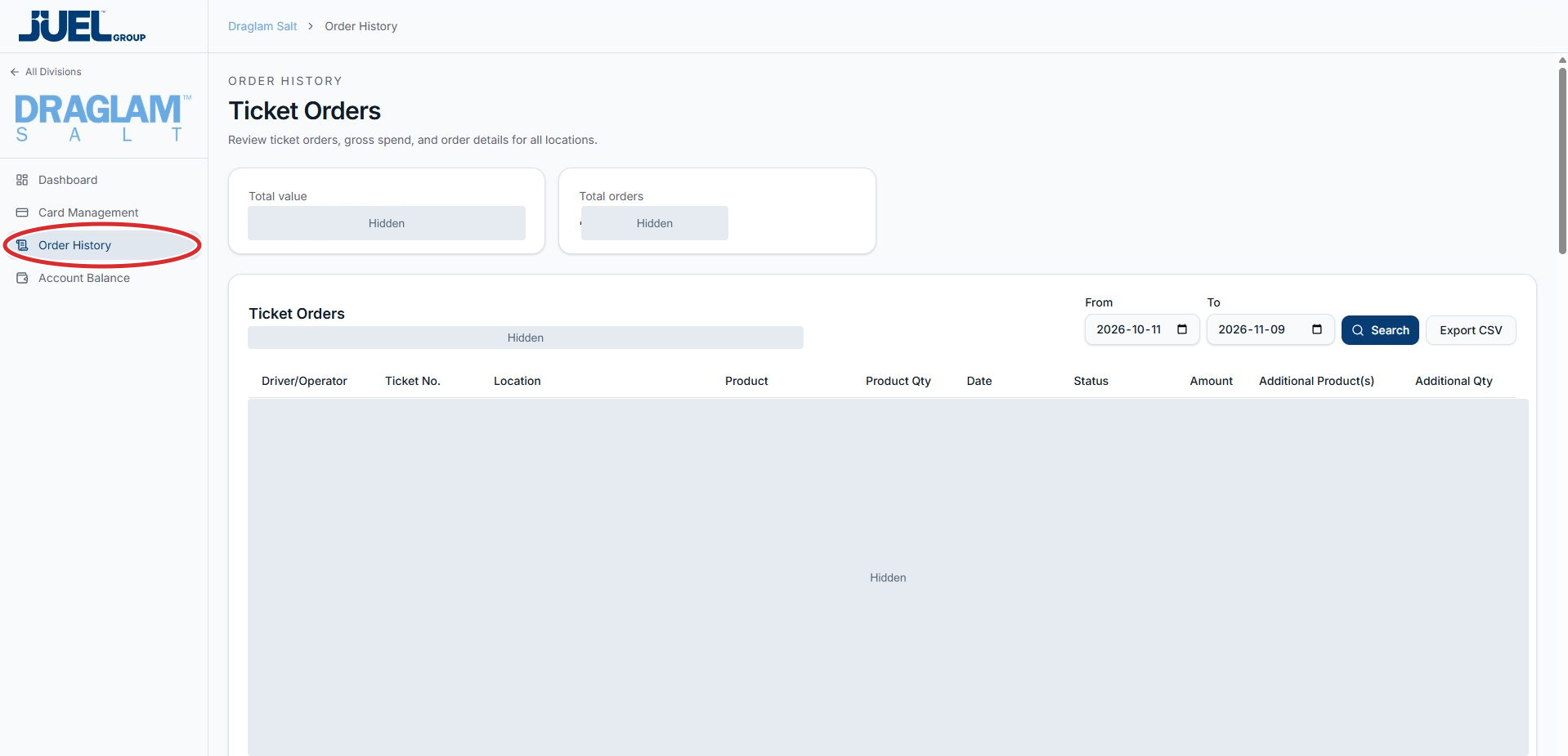
Order History opens Ticket Orders. Customer records and totals are hidden.
Full app view · red circles show where to look. Select View larger, then Actual size to zoom in. - 2
Choose From and To dates
In From, enter or select the first date you need. In To, enter or select the last date. Each field has a calendar button. Check both dates before running the search.
Choose the date range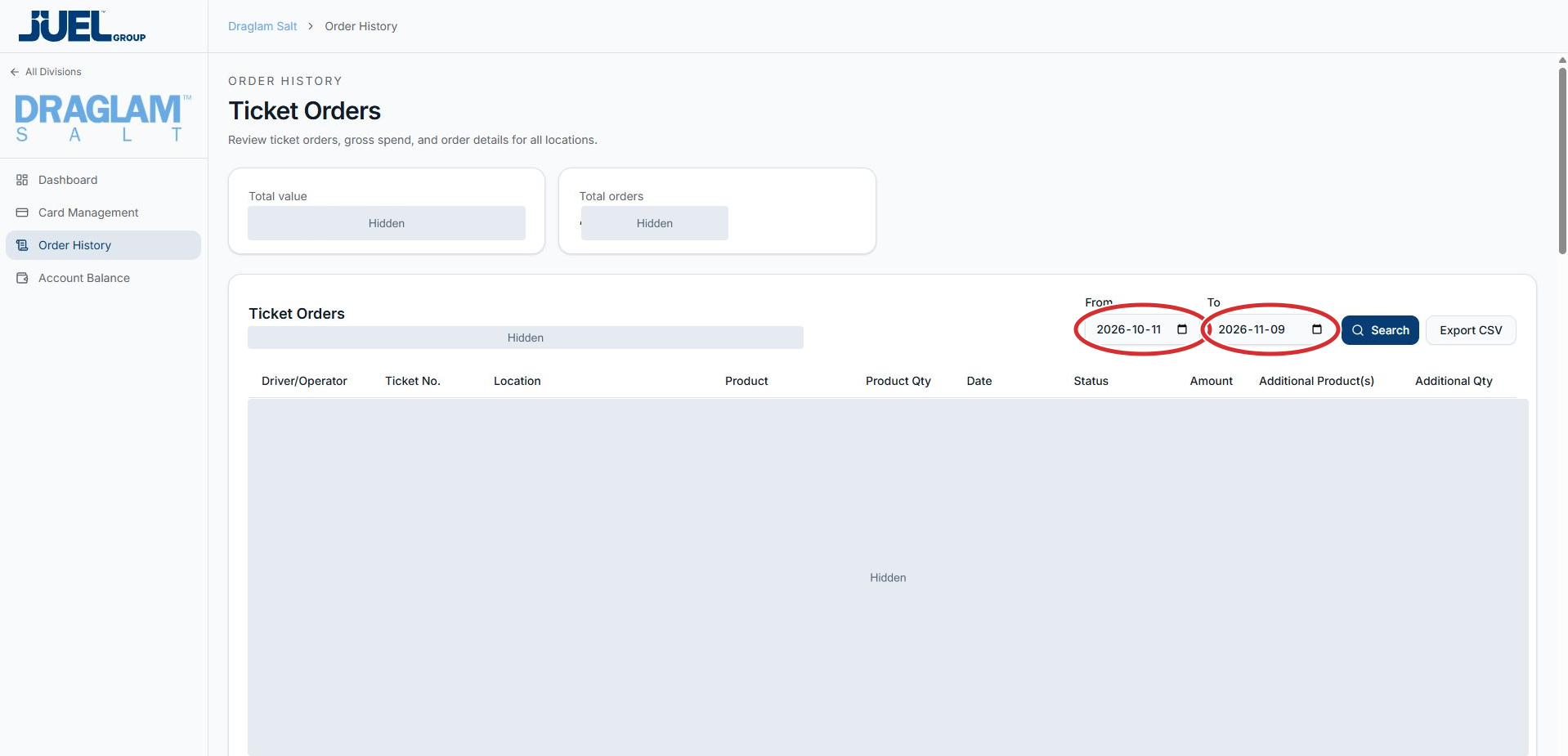
From is the start date; To is the end date. Select Search after setting both dates.
Full app view · red circles show where to look. Select View larger, then Actual size to zoom in. - 3
Select Search and check the period
Select Search beside the date fields. Review the displayed date range and order count above the table to confirm the period you are viewing. If it is incorrect, adjust the dates and select Search again.
Search the selected period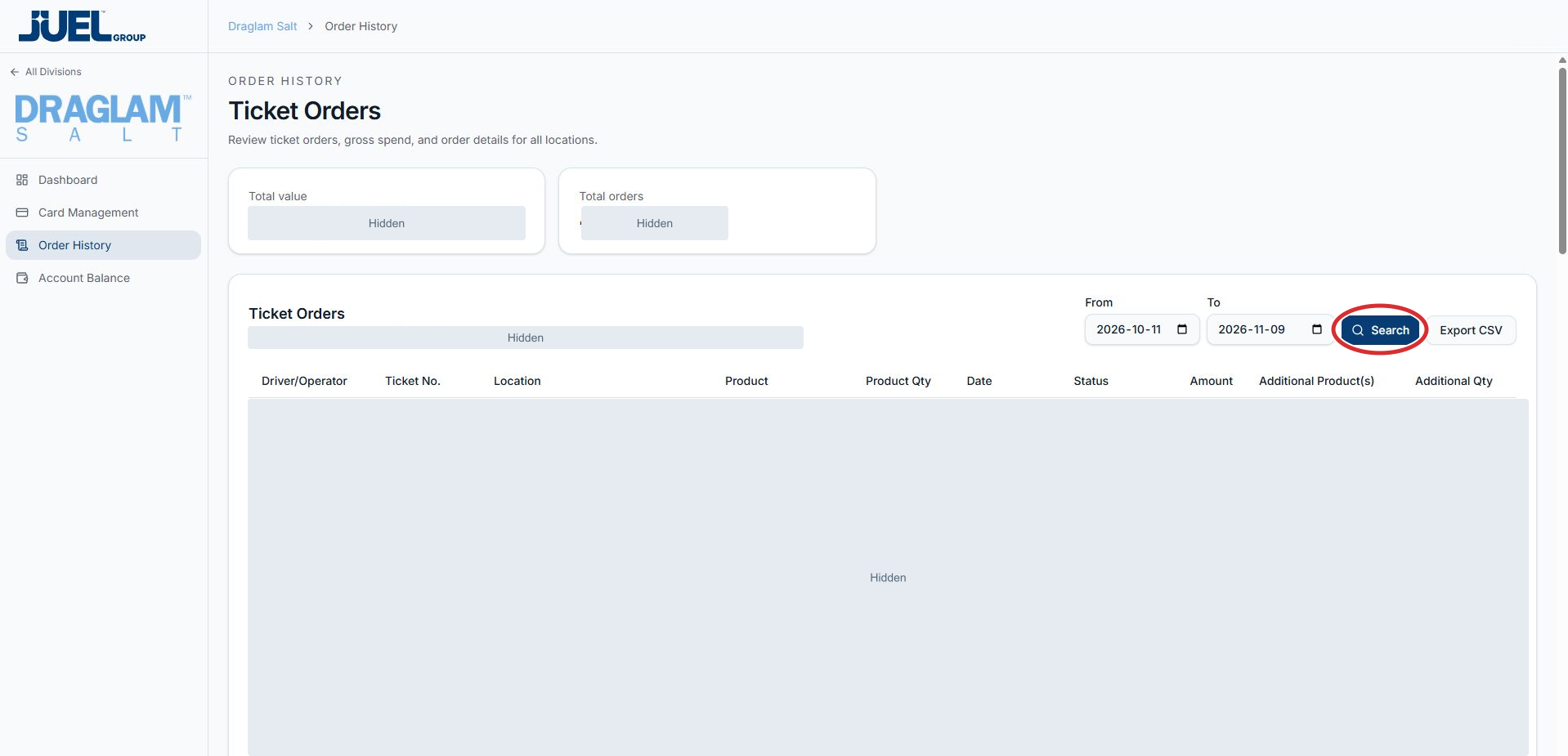
After selecting Search, check the displayed period and order count above the table.
Full app view · red circles show where to look. Select View larger, then Actual size to zoom in. - 4
Read the ticket orders
Use Ticket No. to identify a ticket, then read its Driver/Operator, Location, Product and Product Qty. Review Date, Status and Amount in the same row. Additional Product(s) and Additional Qty are separate columns. Total value and Total orders appear above the table.
Read the ticket headings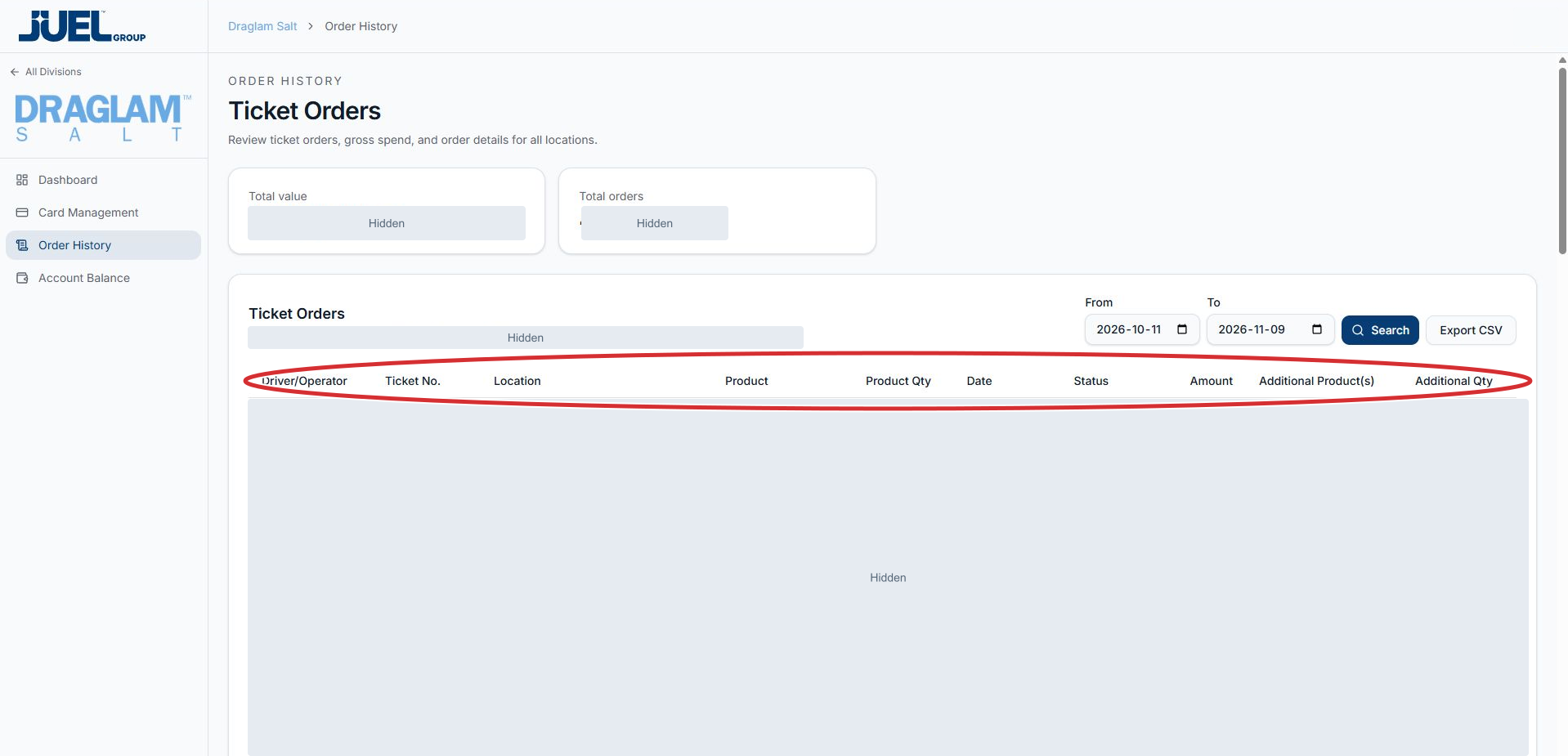
Use Ticket No. to identify a ticket and read the remaining fields in the same row. All actual order records and totals are hidden.
Full app view · red circles show where to look. Select View larger, then Actual size to zoom in. - 5
Export if you need a spreadsheet
After checking the displayed period, select Export CSV beside Search to request a download. Open or import the file in your spreadsheet application and check its dates, columns and records before using it.
Request a CSV export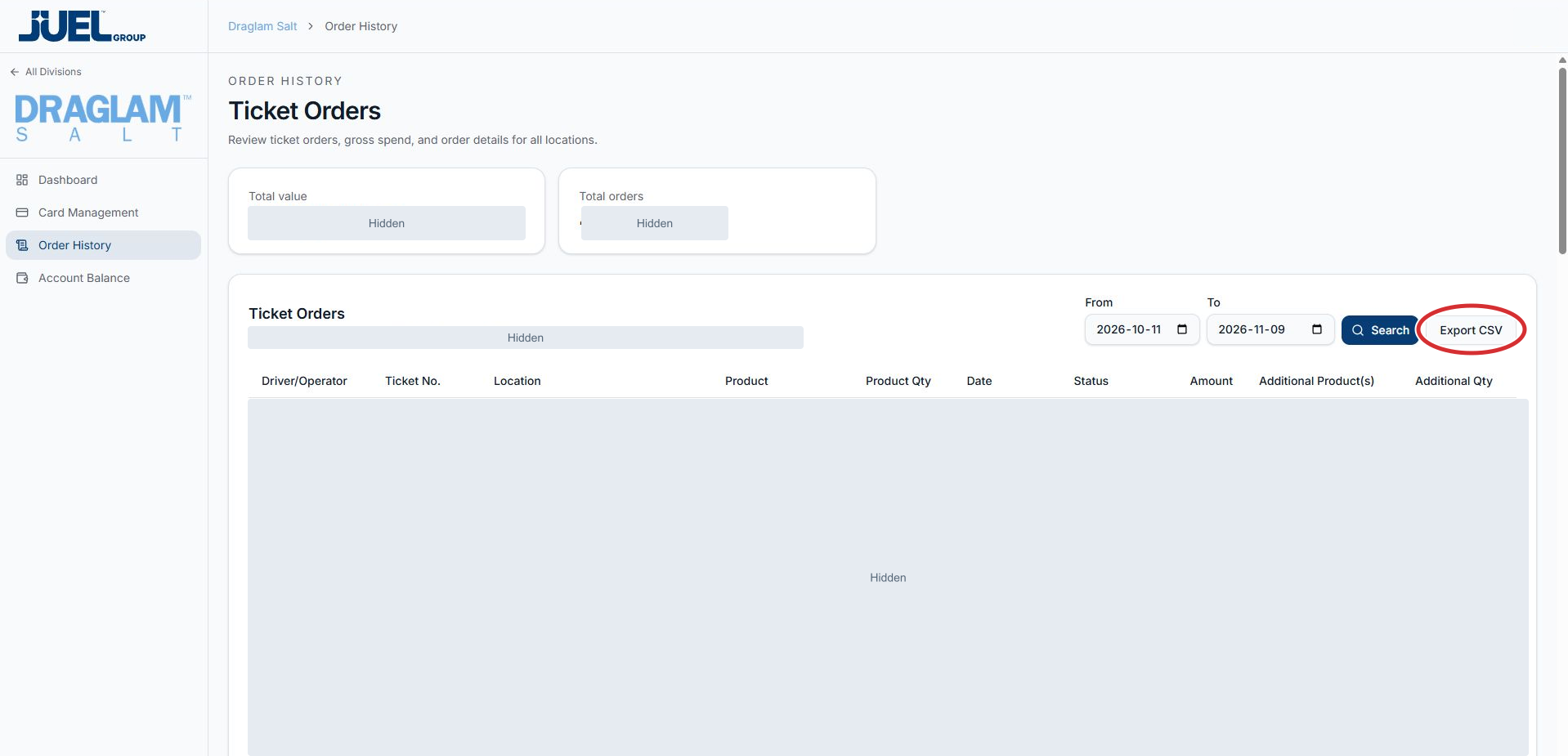
Check the displayed period before selecting Export CSV. Review the downloaded file before using it.
Full app view · red circles show where to look. Select View larger, then Actual size to zoom in.